
When the Law Changes, Your Agreements Should Too
Building a human-in-the-loop regulatory-change agent on the Docusign MCP Server, with Claude Cowork and no code

In this article we connect the Docusign MCP Server to Claude Cowork, load real agreements, build the workflow the agent will trigger, and run the full loop conversationally, with a human approving every action.

The Tuesday that starts it
Bob is a platform engineer on the legal-ops team at Northwind Logistics, a company with a few thousand active agreements sitting in Docusign Agreement Manager. On a Tuesday morning, the email he had been dreading is at the top of his inbox. It is from Priya, Northwind’s product counsel: “New EU data-transfer rule, effective Sept 1. We need to know our exposure.”
A regulator has tightened the rules on cross-border personal-data transfers. Any agreement that moves personal data across the EU border now needs updated standard contractual clause language and a 72-hour breach-notification window. Hard effective date. Priya’s note ends the way these always do: “How many of our agreements does this touch, and what do we do about each one? Legal needs a number by Friday.”
So Bob does what he has done the last three times a rule like this landed. He opens Agreement Manager and starts a manual sweep. Filter by type. Open an agreement. Skim for a data-transfer clause. Note it in a spreadsheet. Next one. By 10 a.m. he has reviewed forty agreements and built a tab he already does not trust. He knows how this ends: a week of skimming, a memo with a number he is seventy percent sure of, and then another round where someone actually goes and amends the things.
The memo was never the hard part. The memo is just the beginning of the real work.
This article builds the agent that does the rest. It watches for a regulatory change, finds the affected agreements in Docusign, reasons about the right next step for each, pauses for a human to approve, and only then triggers a preconfigured Docusign workflow that prepares and sends the amendment. The through-line is simple: the memo is no longer the deliverable; the triggered, approved action is.
What we are building
The agent runs one loop, four beats: poll, reason, approve, act.
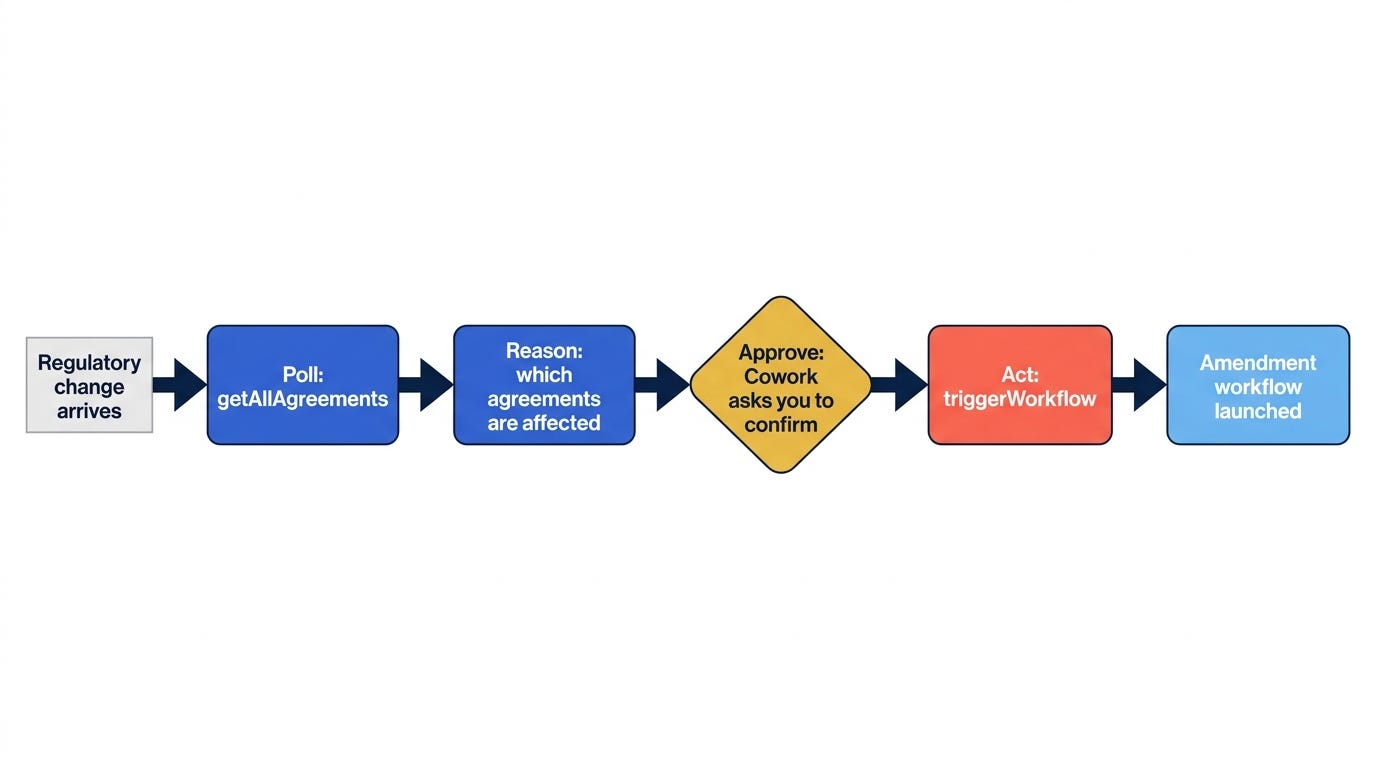
It polls Agreement Manager for the agreement population, reasons over the AI-extracted key terms to decide which agreements a regulatory change touches, stops at a mandatory human-approval checkpoint, and only after a person signs off does it trigger the amendment workflow.
There are two ways to build this. You can write a coded agent on the Claude Agent SDK. Or you can do the whole thing in Claude Cowork with no code at all: connect the Docusign MCP Server as a connector and drive the loop conversationally, letting Cowork’s built-in “confirm before acting” prompt serve as the human-approval gate. This article is the Cowork build, start to finish.
A note on scope, stated plainly: one regulatory scenario, one preconfigured workflow, one query pattern, entirely inside the real MCP tool envelope. Nothing aspirational is dressed up as working. Every screen and tool call below actually ran against a live Docusign demo tenant.
Two ways to attach the Docusign MCP
This is the part worth understanding before you click anything, because it is exactly where we lost time.
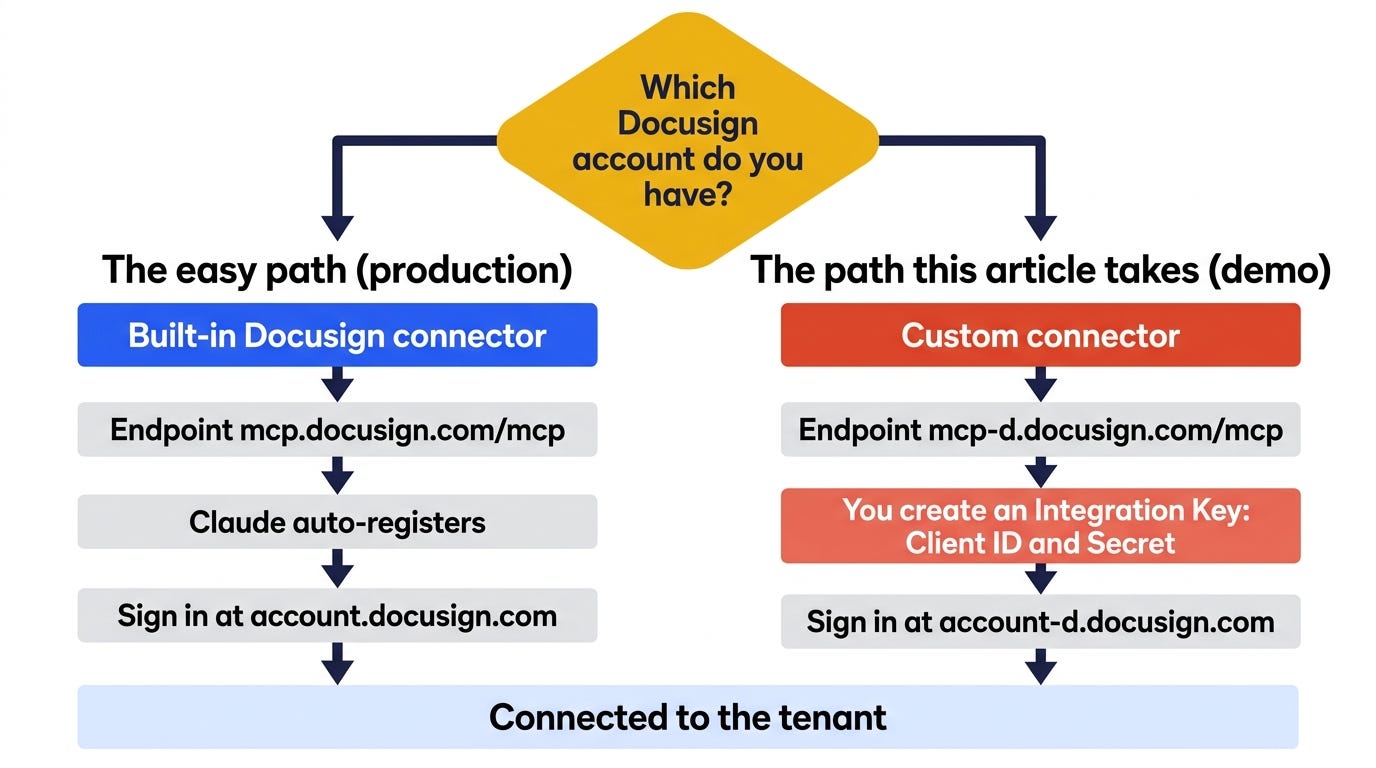
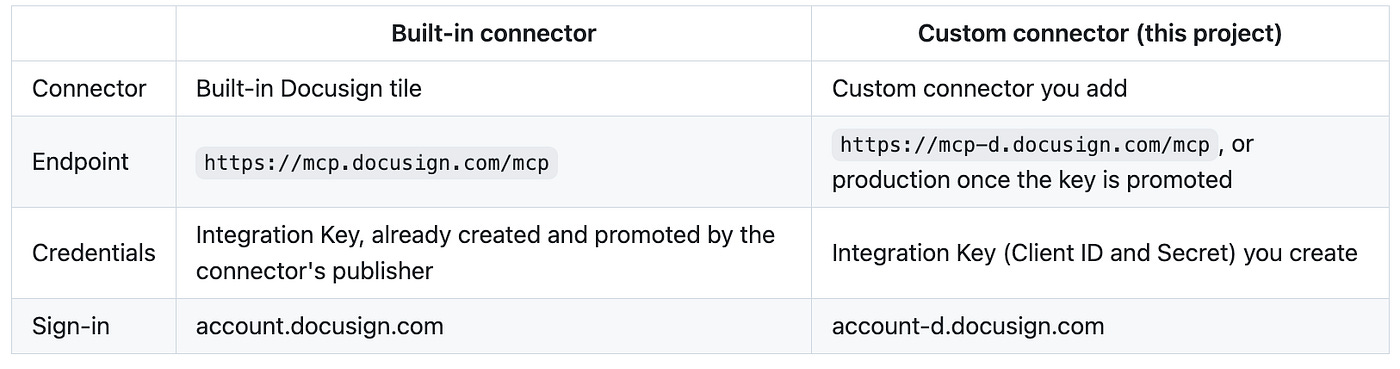
The built-in connector, where someone already did the work. If your Docusign account is on a paid production plan, the Docusign connector is built into Claude. You open Settings, then Connectors, then Browse connectors, search for Docusign, click Connect, sign in, and approve access. One click, no credentials to manage. That is not because production registers clients automatically. It is because Claude, like every other partner connector, already created an Integration Key and had it promoted from demo to production. You are using their key, not skipping the step.
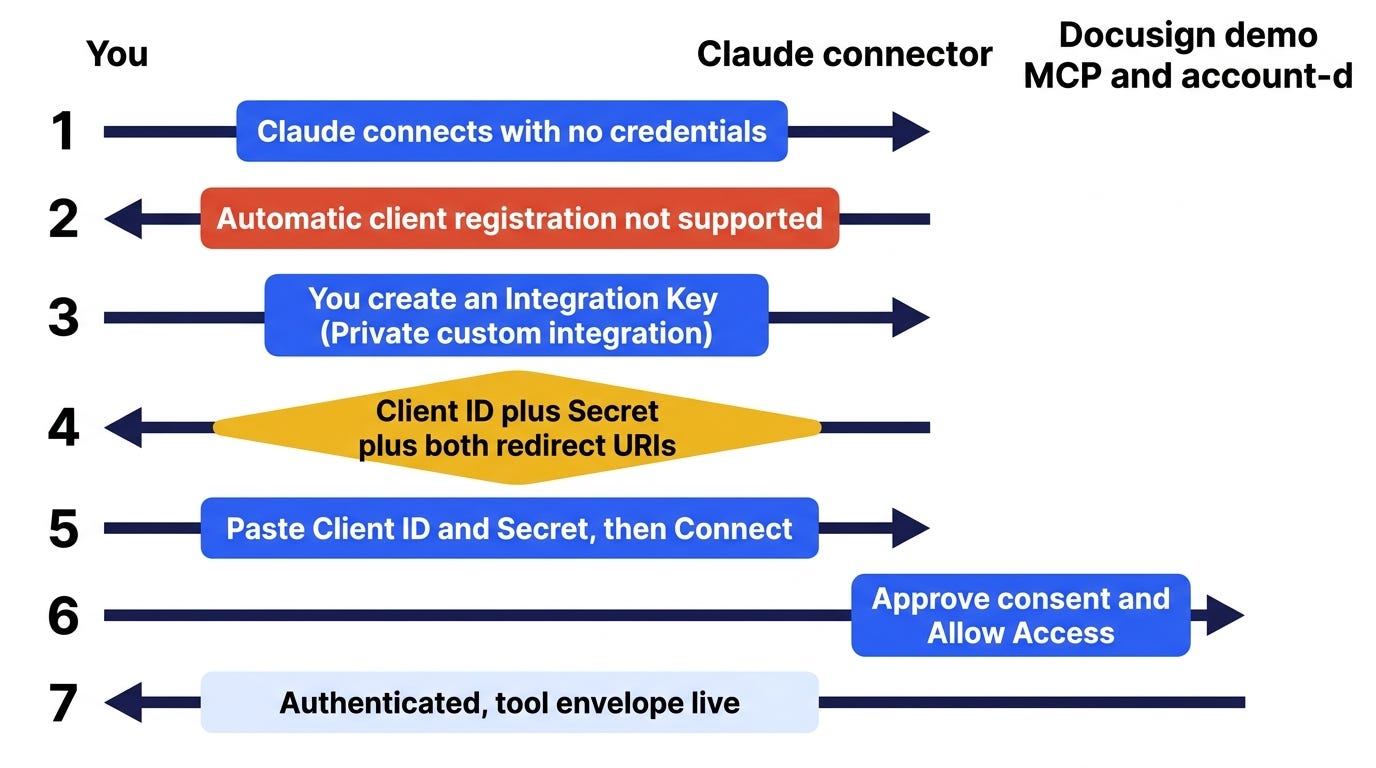
The custom connector, which is what this project uses. Docusign does not support automatic client registration on any endpoint, demo or production. A custom connector therefore always needs a pre-created OAuth Client ID and Secret, which Docusign calls an Integration Key. You create that key in a free developer account and use it against the demo MCP server; when you are ready to go live, you get the same key promoted to production. Both paths require a Docusign account, and both ultimately run on an Integration Key. The only real difference is whether a partner has already done that work for you, or whether you are doing it yourself. The rest of this article walks the custom-connector path.
Step 1: Create the developer account
Visit the Docusign Developer Center to sign up for a free demo account, confirm the email, and sign in. When asked what you want to build, choose Internal Application, which is Docusign used inside your own app for your own use. The ISV options are for redistributing a product to other Docusign customers, which is not what we are doing.
Step 2: The wrong turn, the built-in connector
Our first instinct was the one-click path. In Claude we surfaced the Docusign connector and hit Connect, and the demo-account password was rejected.
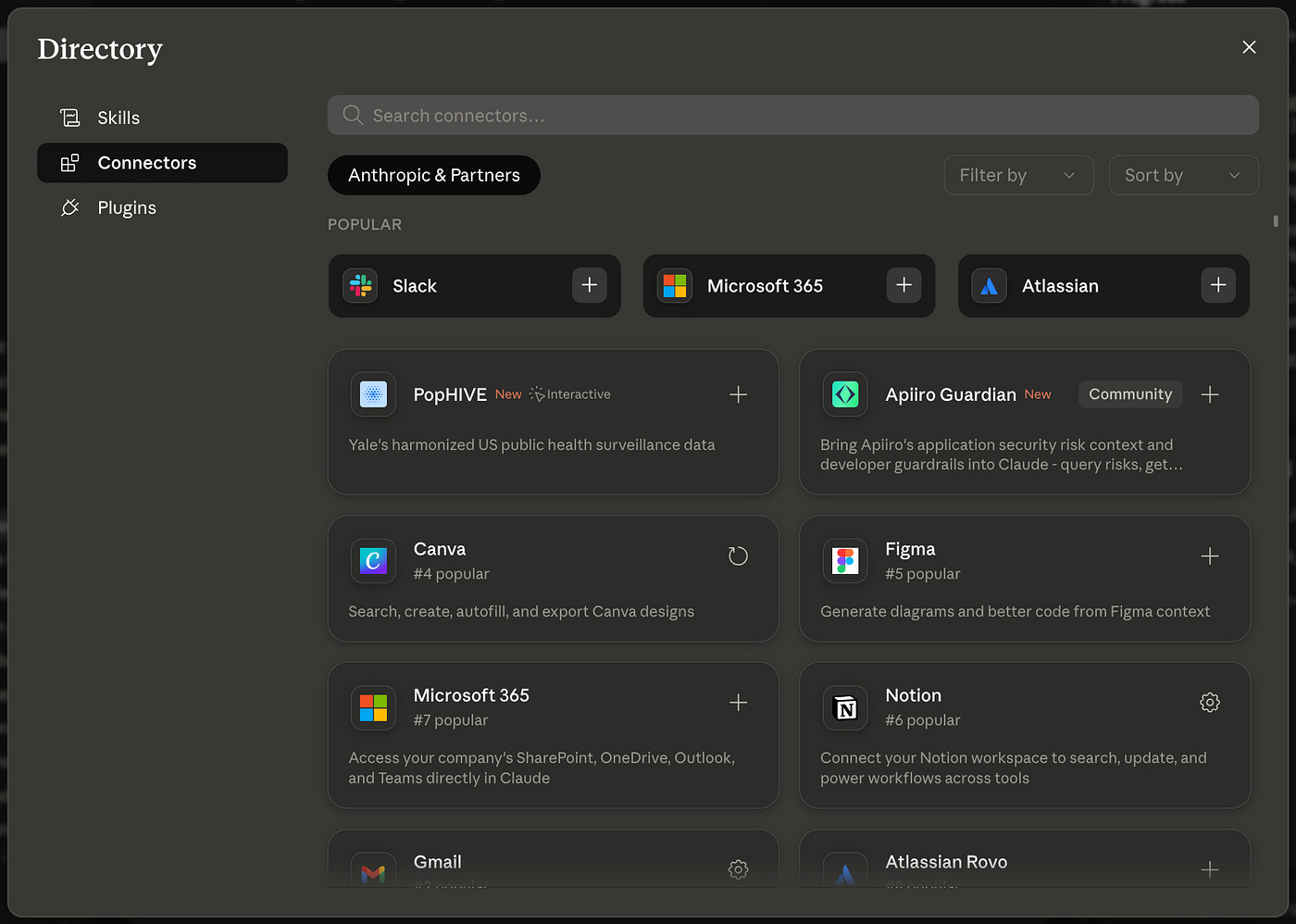
The reason: the built-in tile authenticates against production, account.docusign.com, and a brand-new demo account does not exist there. Switching to a custom connector with the demo URL got us past the password problem but straight into the next wall.
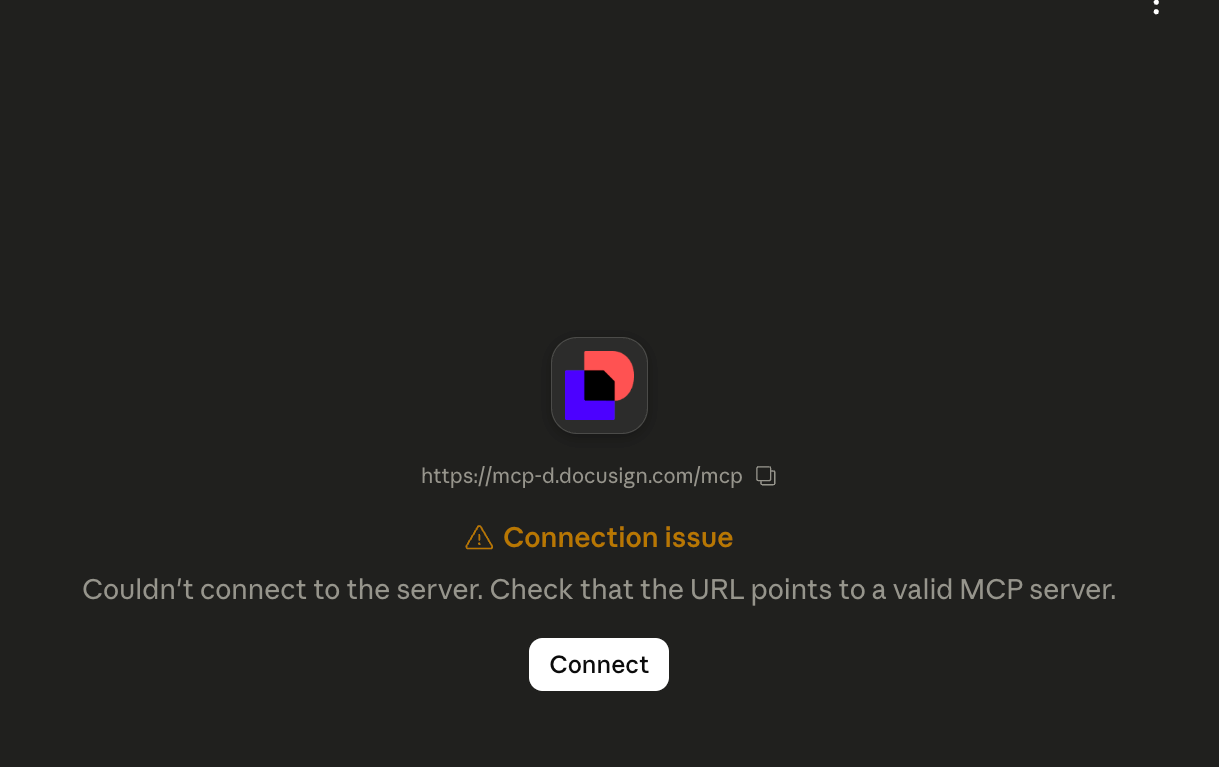

Automatic client registration is not supported by Docusign (demo). Edit the connector and add an OAuth Client ID.
That error is the whole lesson of this section: Docusign does not register OAuth clients for you, on demo or on production. You create the OAuth client yourself, and in Docusign that client is an Integration Key.
Step 3: Create the Integration Key
In the Docusign demo admin, the credentials live under Apps and Keys. Open your profile menu in the top right and click My Apps and Keys to get there directly.
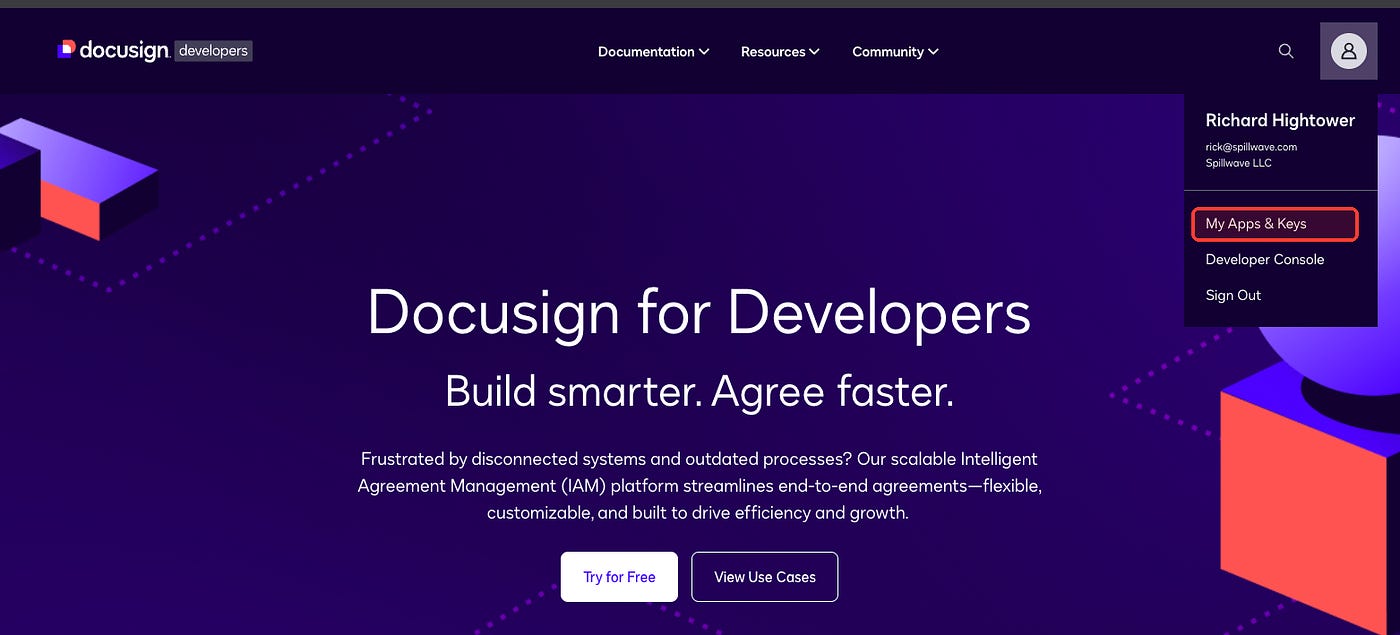
On Apps and Keys, click Add App and Integration Key and name it Regulatory Change Agent. The name shows on the consent screen and in your screenshots, so make it read well. Docusign generates the Integration Key, which is your OAuth Client ID.
The sequence the demo server forces you through looks like this.
Docusign’s Add App form is long, but only a handful of fields decide whether the connector will work. Set the integration type first, then answer the client-secret question; every other field on the page can keep its default.
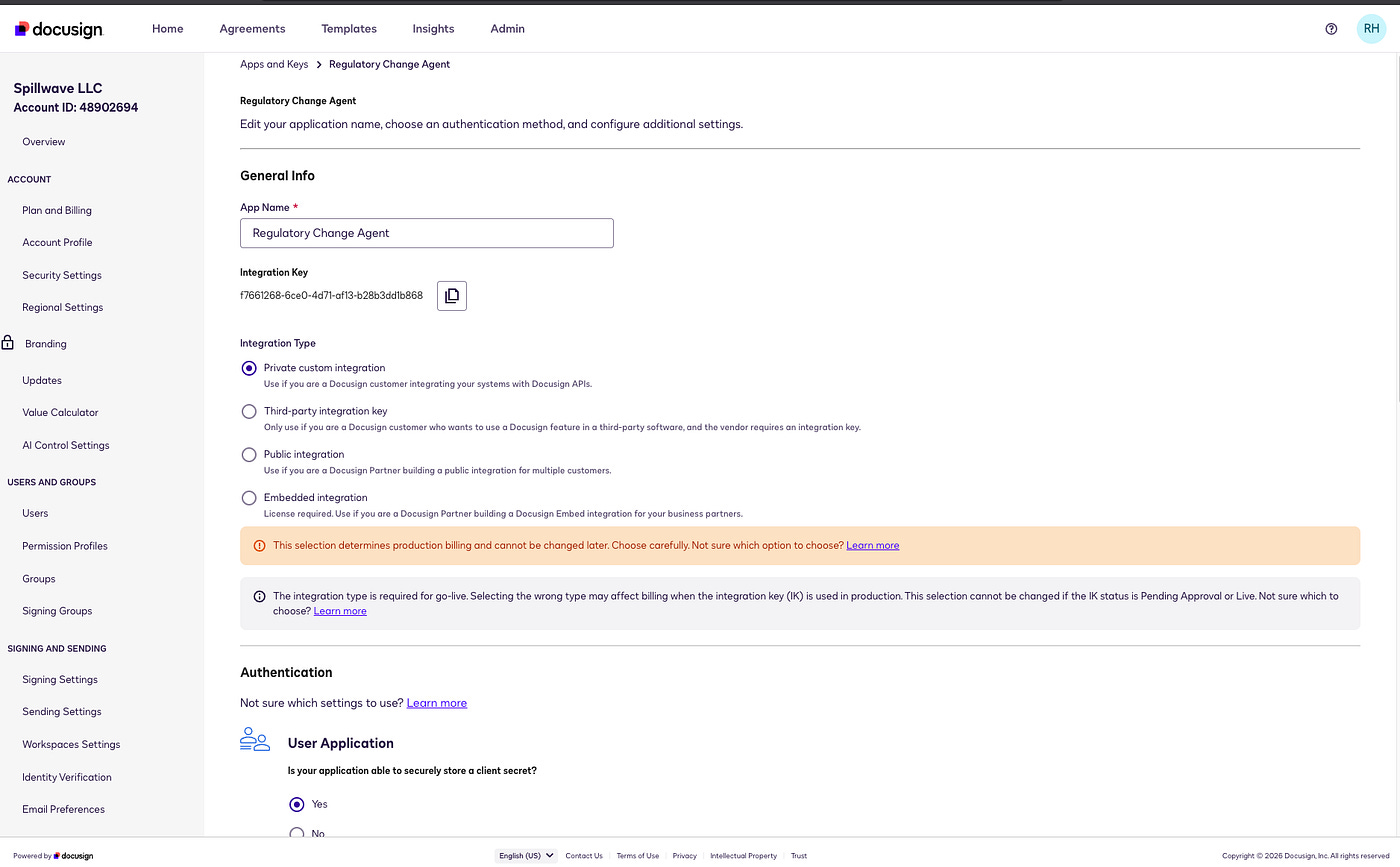
Integration Type: choose Private custom integration.
User Application, “Able to securely store a client secret?”: choose Yes. This selects the Confidential Authorization Code Grant, which is the only grant the Docusign MCP supports. Leave PKCE unchecked.
Add Secret Key: click it and copy the secret immediately, because Docusign never shows it again.
Redirect URIs: add both of Claude’s callbacks, exactly:
https://claude.ai/api/mcp/auth_callbackandhttps://claude.com/api/mcp/auth_callback.Ignore Service Integration and RSA (that is JWT, used by coded agents), the Privacy and Terms links, and CORS.
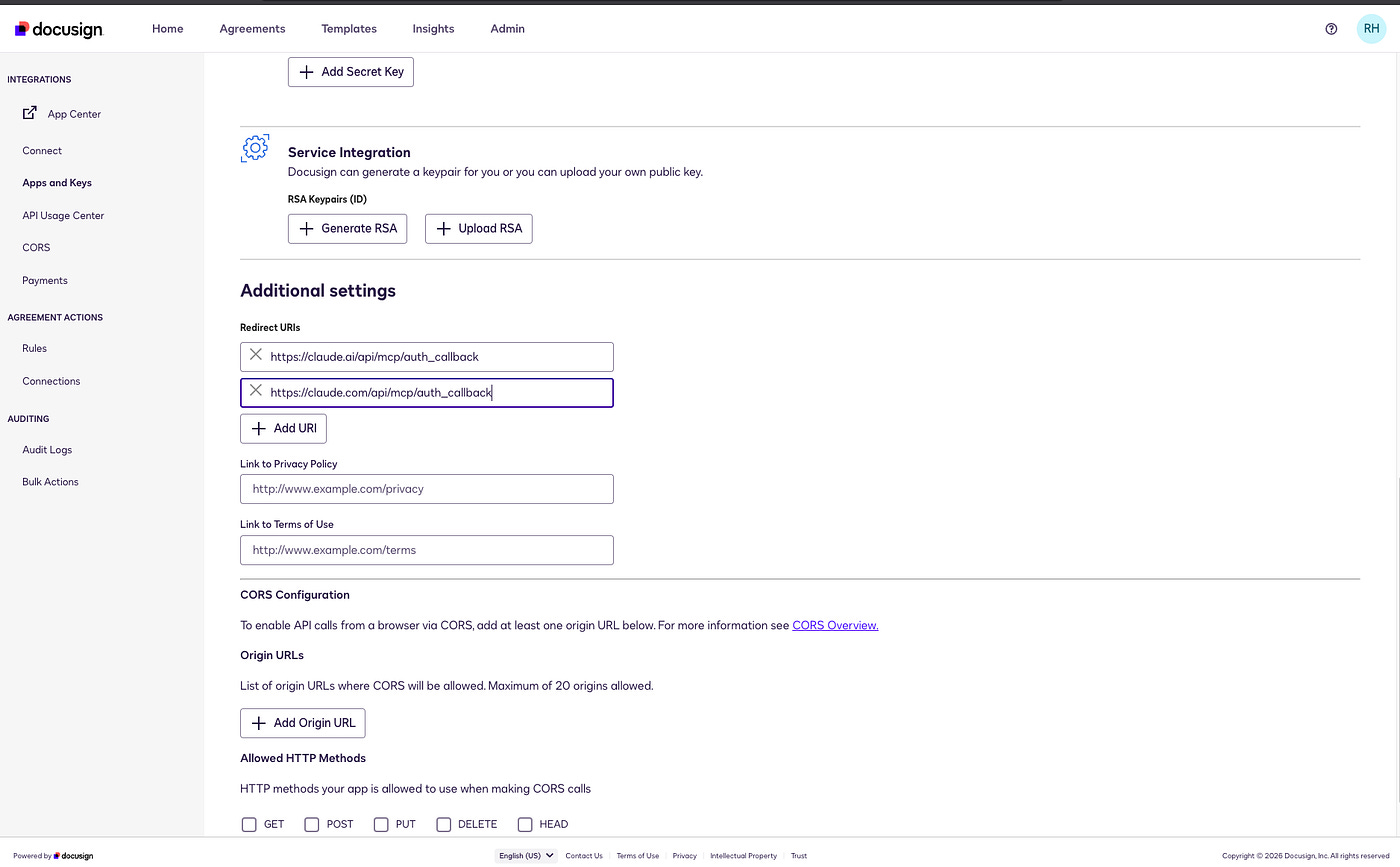
Then Save. The Integration Key (Client ID) is not a secret and is safe to show. The Secret Key is the sensitive value: put it in a secret store such as 1Password, AWS Secrets Manager, or your platform’s equivalent, reference it from there rather than pasting it around, and keep it out of screenshots, chat transcripts, and source control.
Step 4: Wire up the custom connector
Back in Claude, open Settings, then Connectors, then Customize, then Add custom connector.
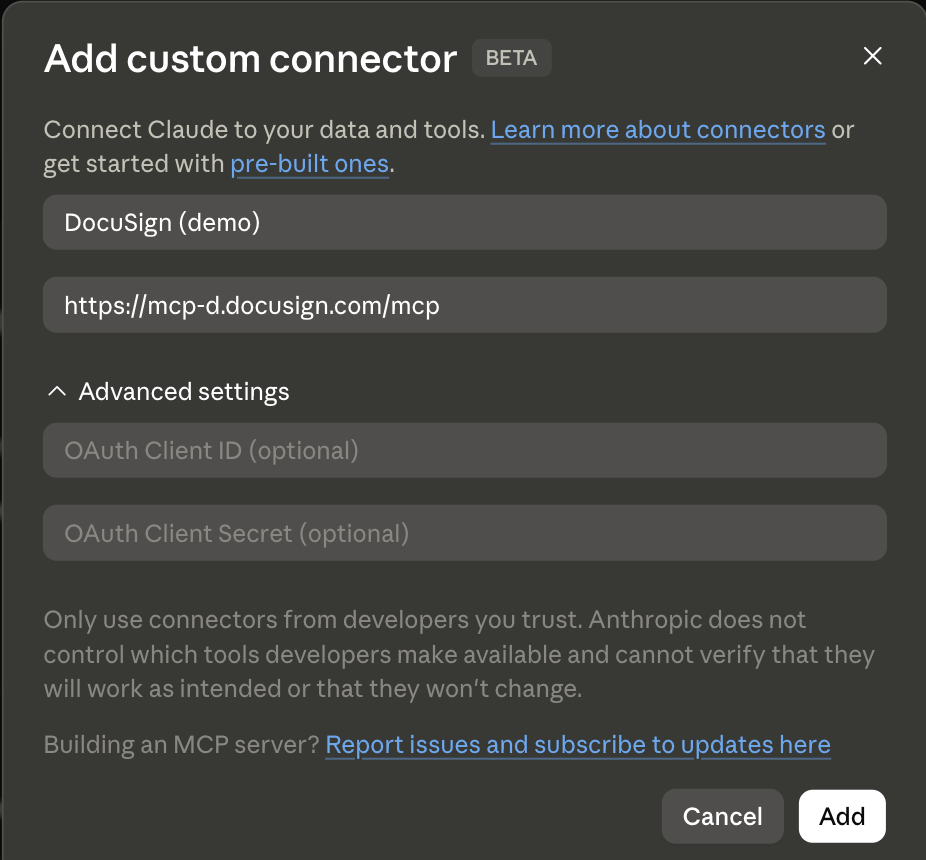
Fill it in:
Name: Docusign (demo)
URL:
https://mcp-d.docusign.com/mcpAdvanced settings, OAuth Client ID: the Integration Key
Advanced settings, OAuth Client Secret: the Secret Key
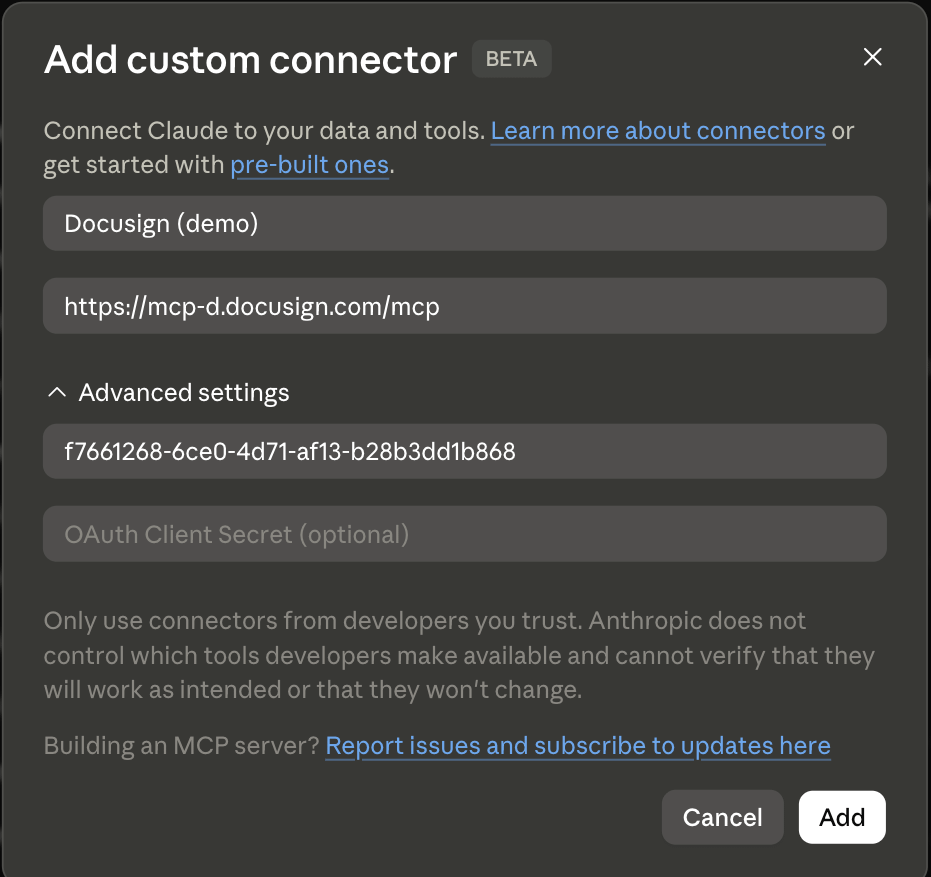
Save, click Connect, sign in to your demo account, and approve the consent screen. Because you named the Integration Key well, the consent screen reads coherently.
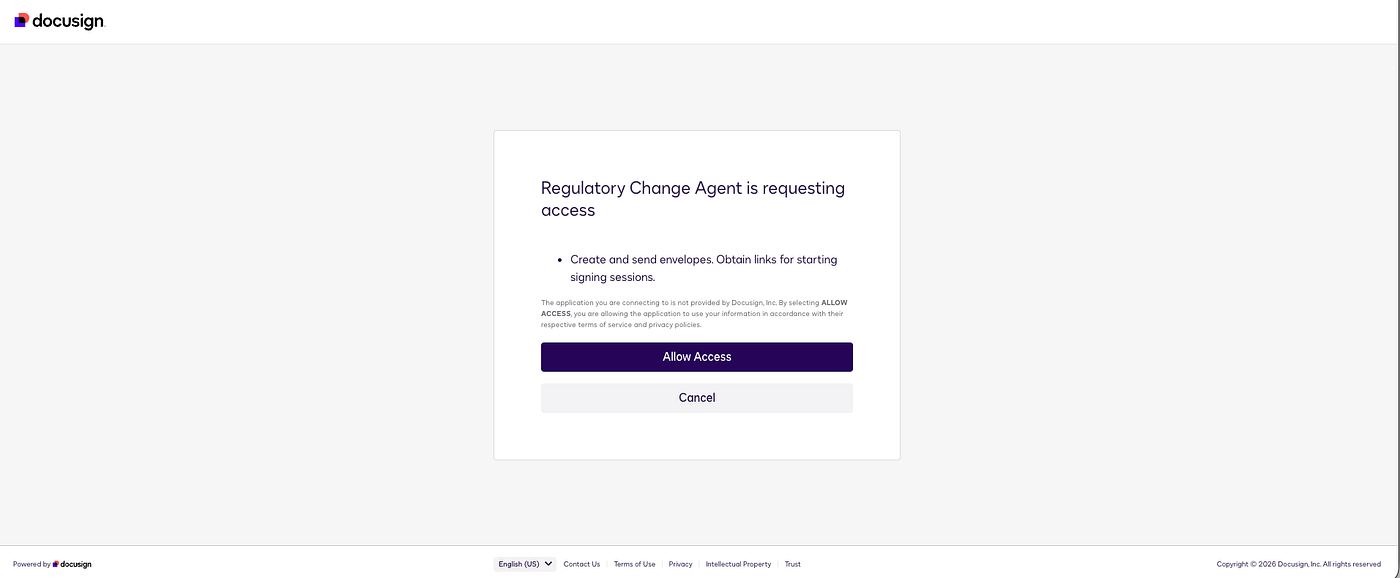
Step 5: Verify the connection
A quick prompt confirms Claude is talking to the right tenant.
Asking for account info returns the authenticated user, the account (Spillwave LLC), and the demo base URI demo.docusign.net. Polling Agreement Manager with getAllAgreements succeeds, which means the full tool envelope is live: getAllAgreements, getAgreementDetails, getWorkflowTriggerRequirements, and triggerWorkflow.
One catch, and the cliffhanger for the next step: the tenant currently holds zero agreements. The plumbing works end to end, there is simply no data to reason over yet. Next we load a corpus of sample agreements into Agreement Manager so the AI can extract key terms, and then the loop has something to act on.
Step 6: Load agreements into Agreement Manager
A freshly connected tenant is empty. getAllAgreements returns totalCount: 0. The connector can read Agreement Manager but cannot ingest documents, so we load agreements through the Agreement Manager web UI.
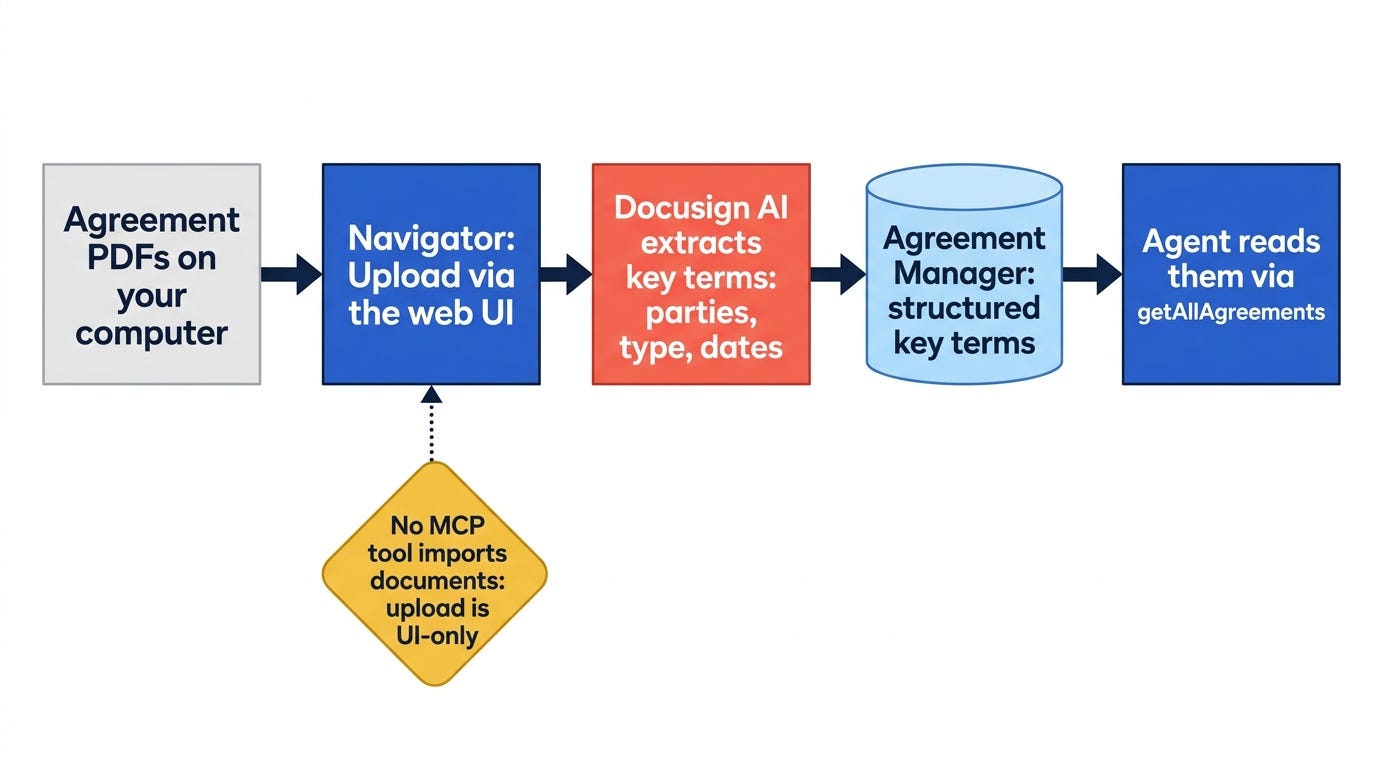
Two things tripped us up first, both worth knowing.
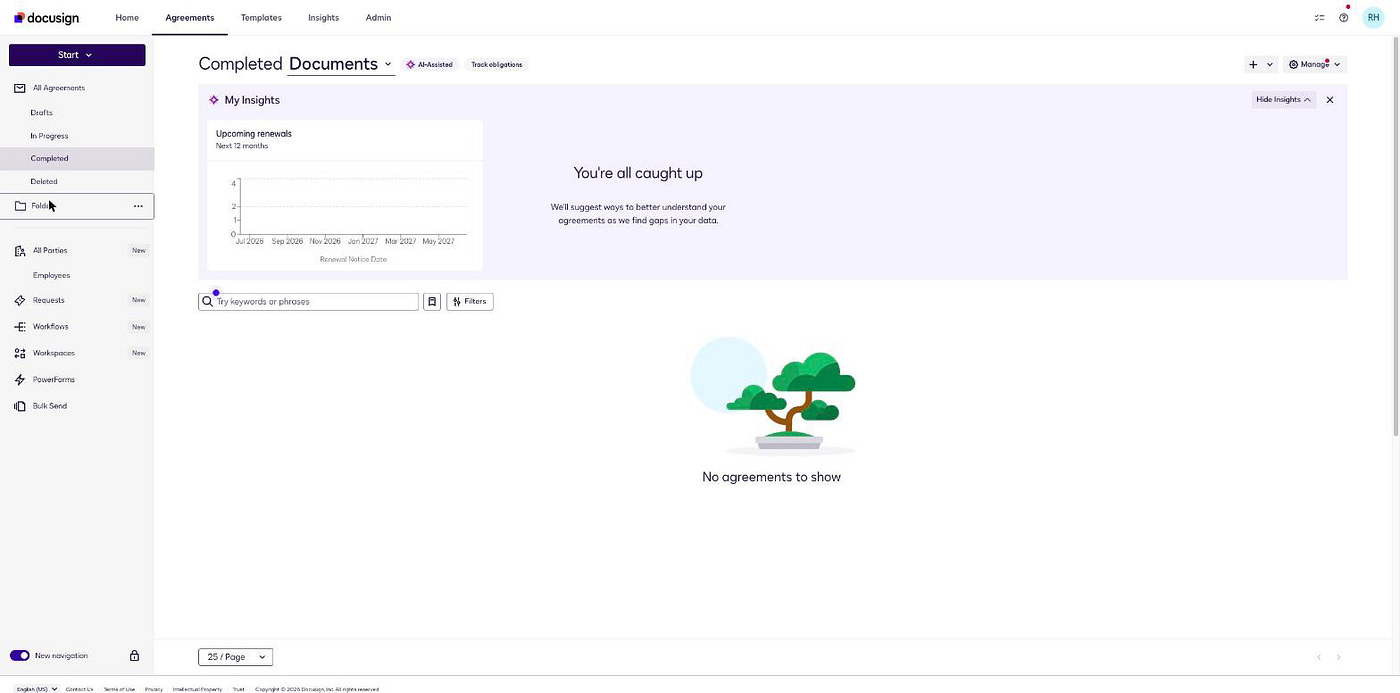
Agreement Manager has no “Agreement Manager” nav item. You reach it through Agreements in the top nav, then Completed, which opens the Agreement Manager repository at
apps-d.docusign.com/send/navigator, the AI-Assisted “Completed Documents” view. Direct URLs like/navigatorjust bounce to eSignature.It is enabled but quiet. A new developer account shows
enableAgreement ManagerTrial: truein its settings and the API answers, so nothing is blocked. The UI entry simply lives under Completed.
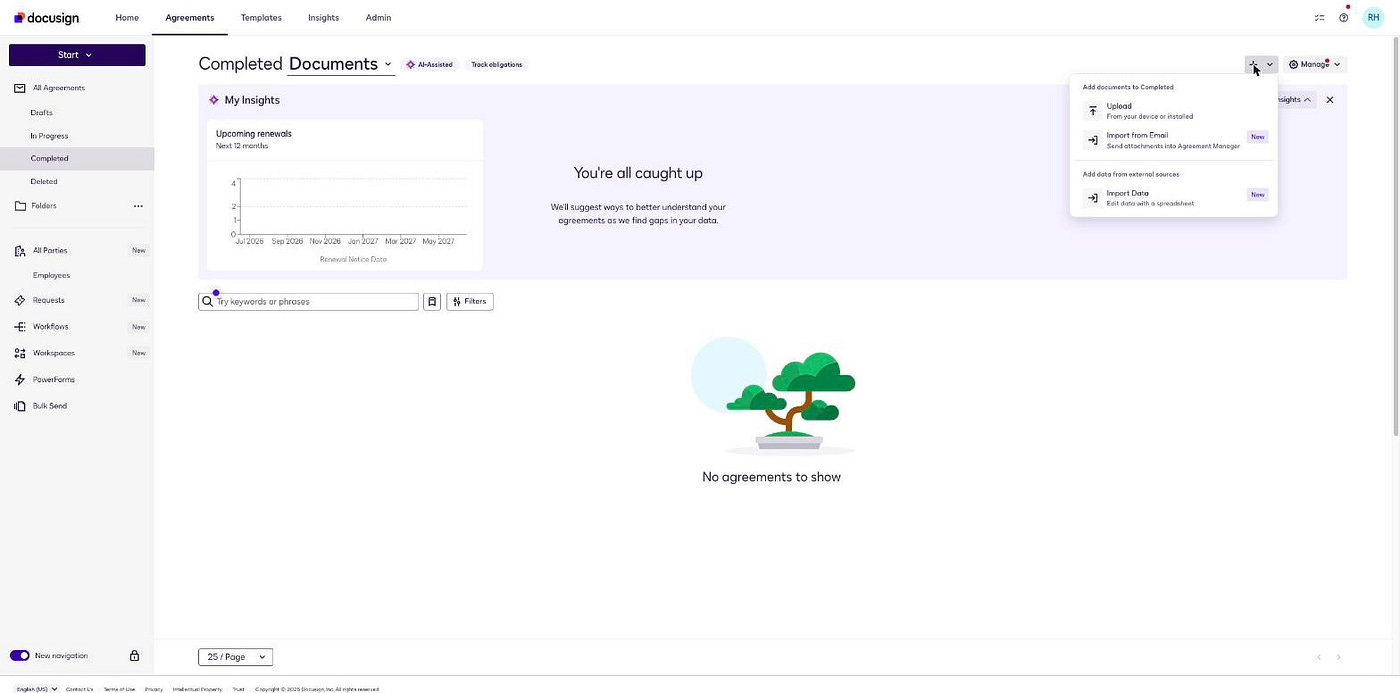
Upload
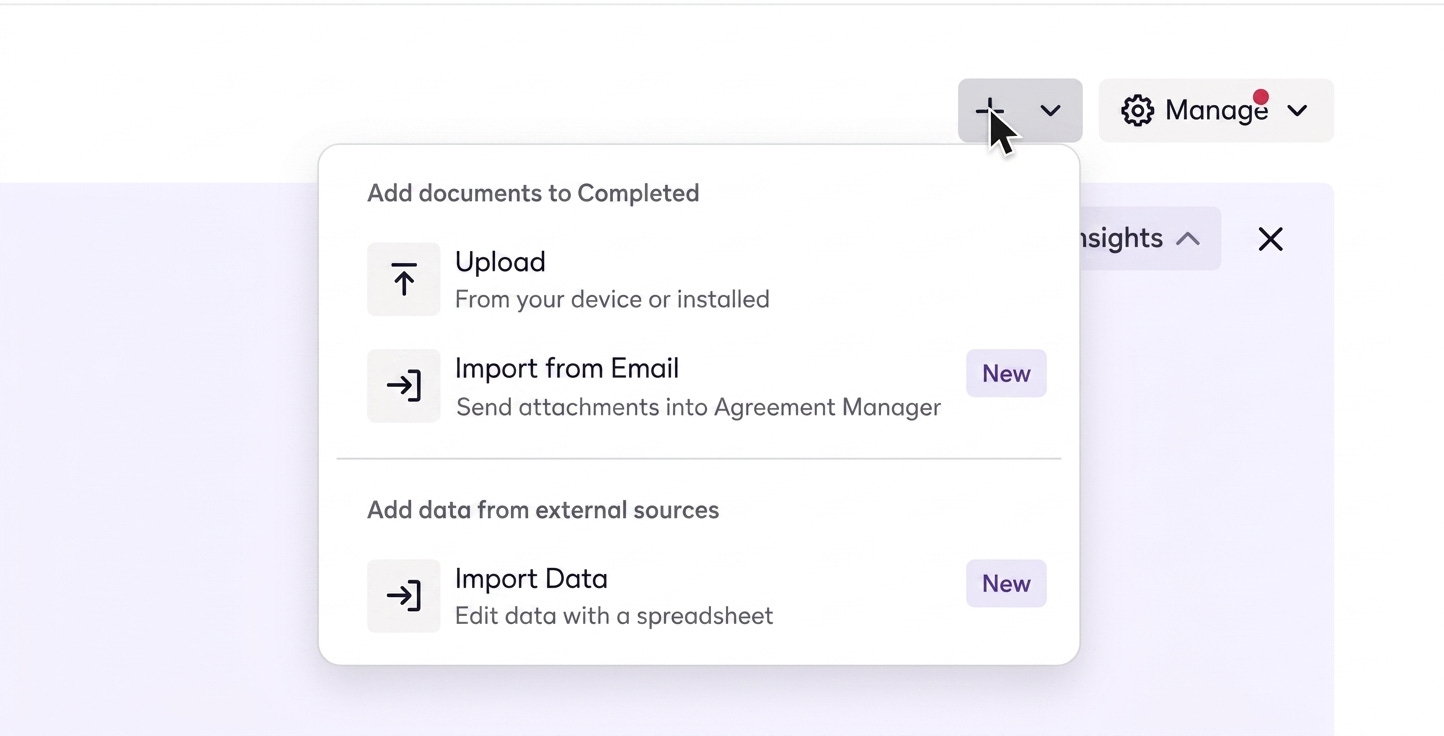
In Agreements, then Completed, open the + (Add) menu at the top-right and choose Upload. The menu also offers Import from Email and Import Data.
Zoom in a bit
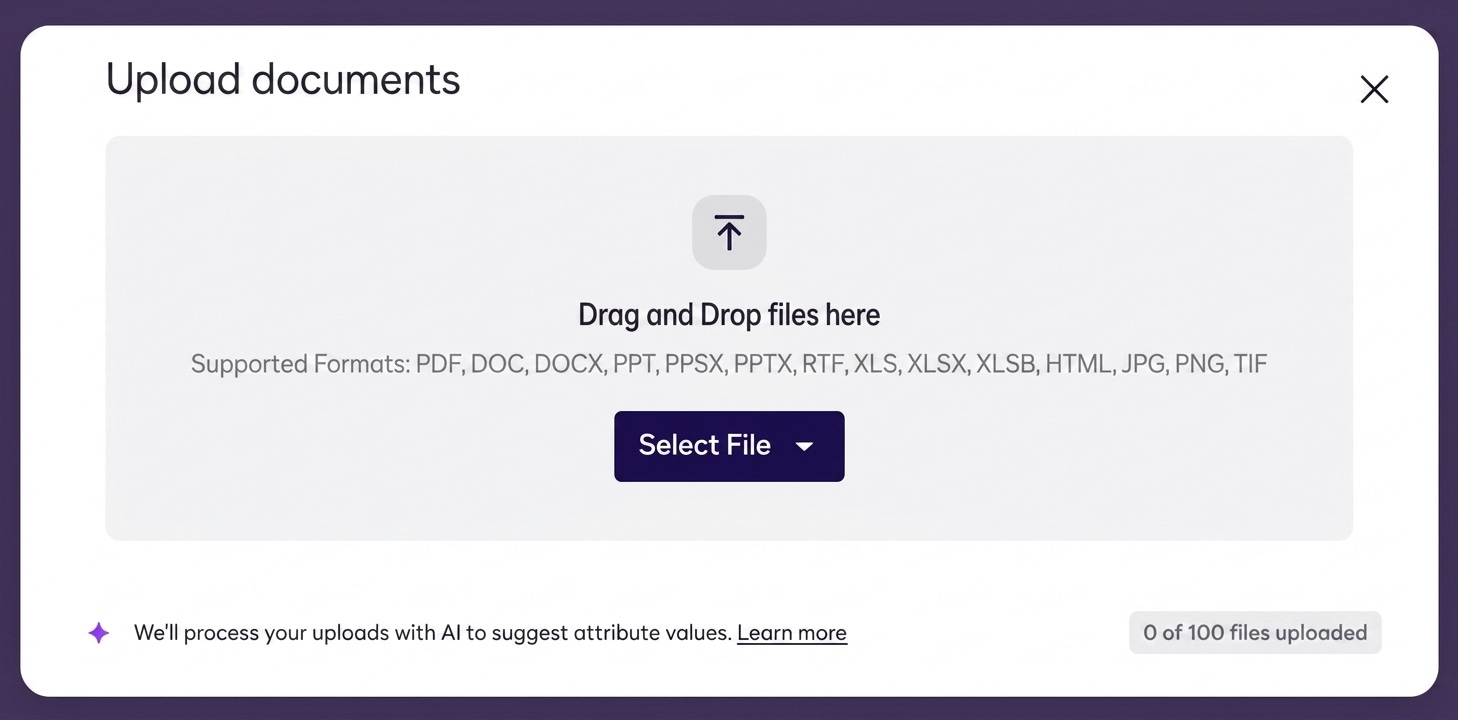
In the Upload documents dialog, add files by drag-and-drop or by Select File, then Browse. Supported formats include PDF, DOC, DOCX, PPT, PPTX, RTF, XLS, XLSX, HTML, JPG, PNG, and TIF. You can add up to 100 documents.
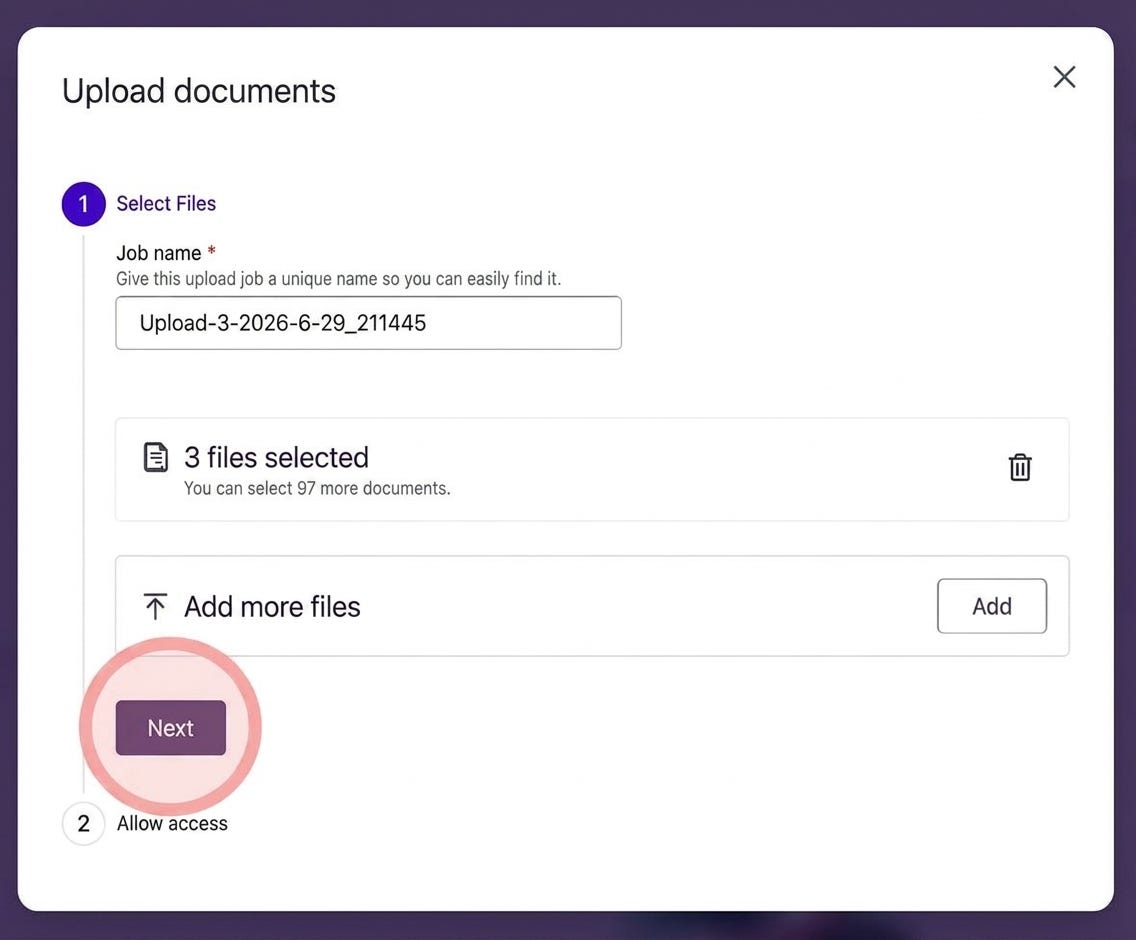
Give the upload job a name, confirm the file count, then Next.
On Allow access, choose Skip this step to keep the documents private to you, then Upload, then confirm Upload Privately.
You will see Upload Complete. DocuSign then processes the files with AI in the background, about half a minute for a few small PDFs. When it finishes, an email confirms the upload and that key details were found with AI.
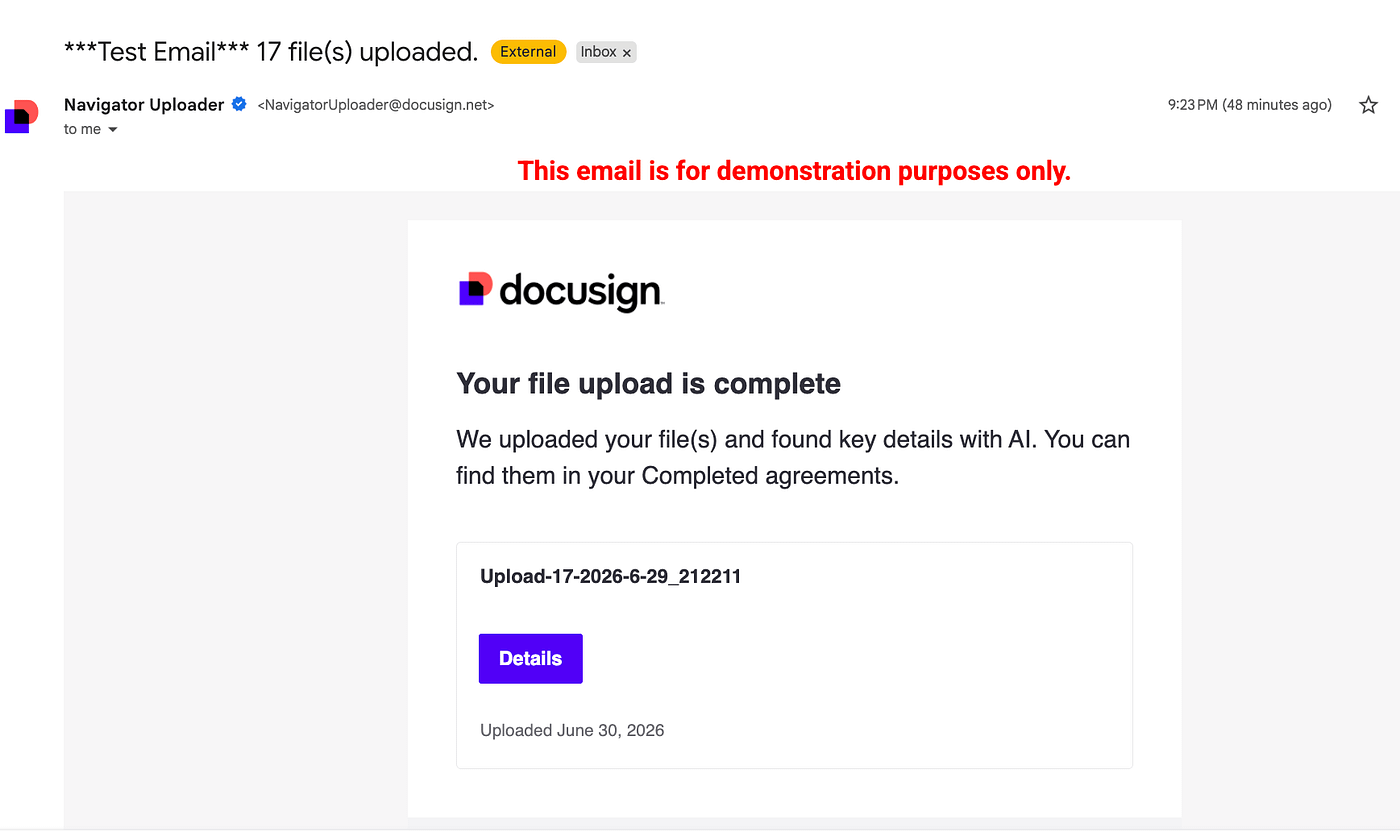
The payoff: AI extraction, confirmed
Within a minute, the Completed view shows each agreement with AI-extracted key terms: the parties, status, expiration date, and agreement type, each marked with a purple star to show it was AI-populated and not yet human-confirmed. Re-polling the connector proves the agent can now see them. getAllAgreements returns the agreements, each with a title, a type (Addendum, Master Service Agreement, Privacy and Security), parties (a buyer and a counterparty), and provisions (effective and expiration dates). The review_status is PENDING simply because the AI values have not been manually confirmed.
That is the whole point of the piece in miniature: with no code, the agent can now poll a real agreement population and read structured, AI-extracted terms, ready for the reason, approve, and act steps.
A note on capturing these screens: in a Cowork session, Claude’s in-browser screenshots render inline but cannot be saved to disk. The Agreement Manager and workflow screens here were captured with a native screenshot tool. A couple of moments that Cowork could only show inline, such as the live approval prompt, appear below as diagrams instead.
Step 7: Build the Amendment workflow in Workflow Builder
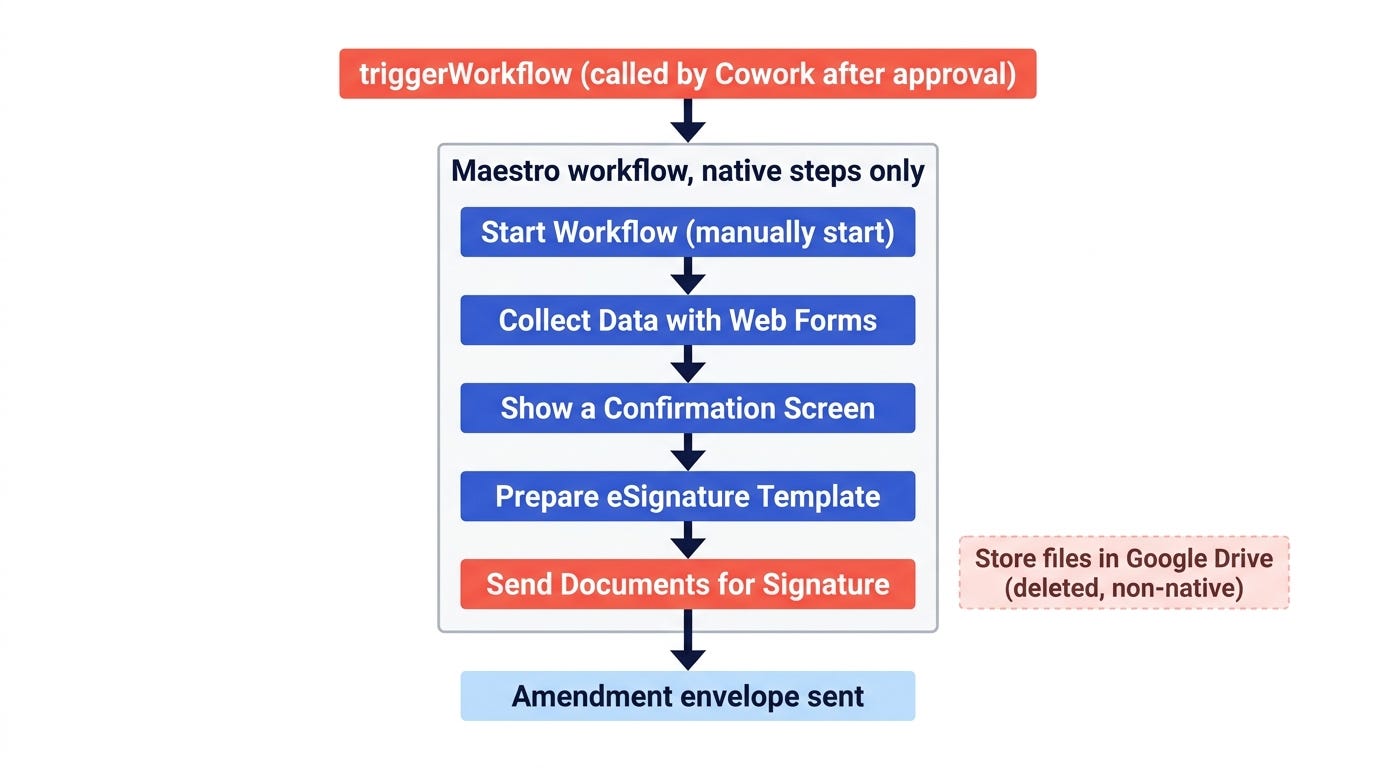
The agent’s “act” step triggers a preconfigured Docusign workflow. The agent triggers, it never builds the workflow at runtime, and that is the right boundary rather than a limitation: the workflow is a reviewed, governed artifact, and the agent only launches it. Here is how that workflow was built, native steps only, so the connector’s triggerWorkflow can launch it.
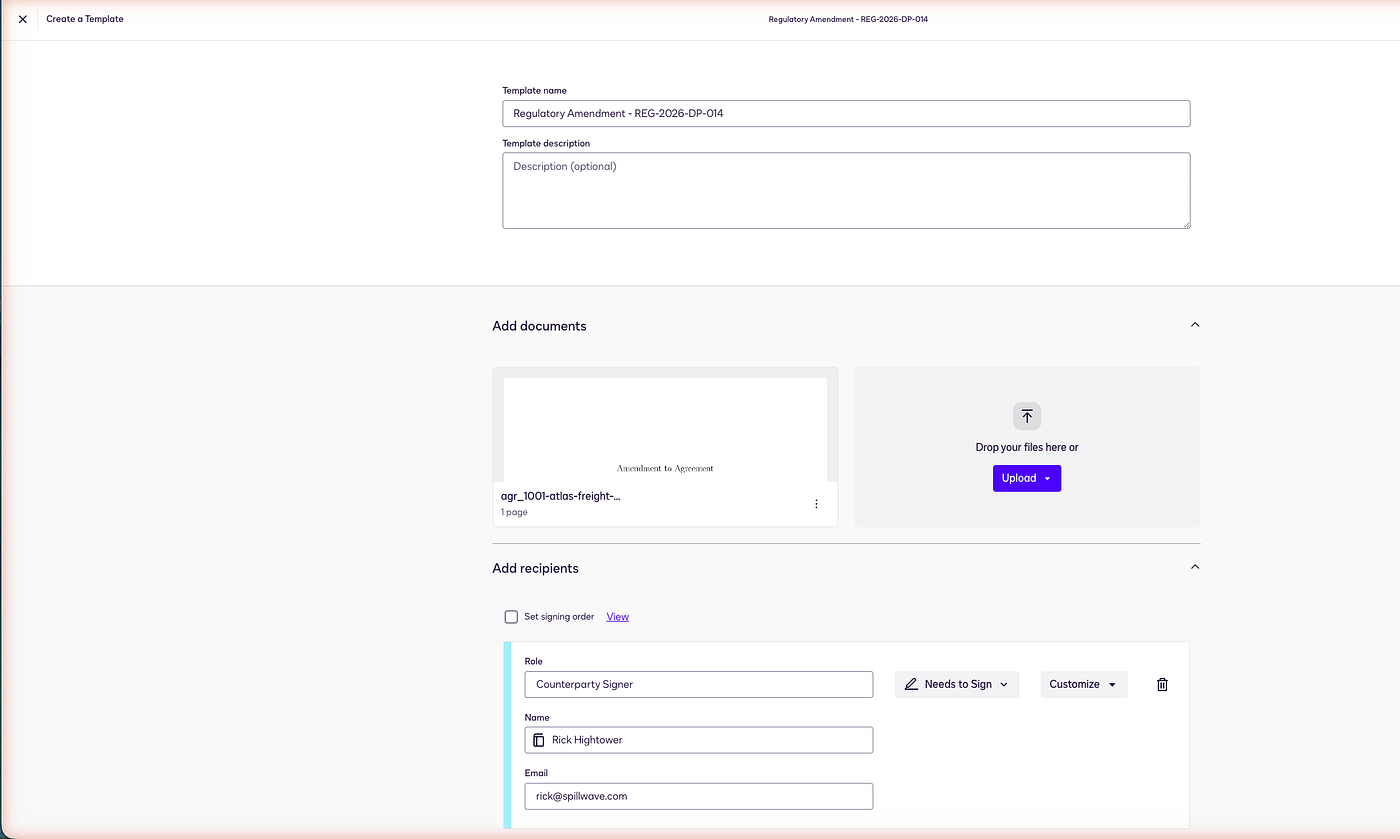
7a. Create the amendment template
A workflow’s signature step references an envelope template, and a fresh account has none.
Go to Templates in the top nav, then Create a Template.
Template name:
Regulatory Amendment - REG-2026-DP-014.Add documents, then Upload: an amendment document (we used a corpus amendment PDF).
Add recipients: one role, for example Counterparty Signer, action Needs to Sign. The editor requires a name and email, so we used the demo signer.
Save and Close.
7b. Create the workflow from the template
Go to Agreements, then Workflows, then Create Workflow.
Choose Start from Envelope Template, then Continue.
Select the Regulatory Amendment template, then Continue.
The wizard asks what happens after signing and only offers third-party options such as Google Drive or Salesforce. Pick either and proceed to the canvas, because we will delete it next (native steps only).
Docusign auto-generates a native backbone, plus the third-party step the wizard forced in.
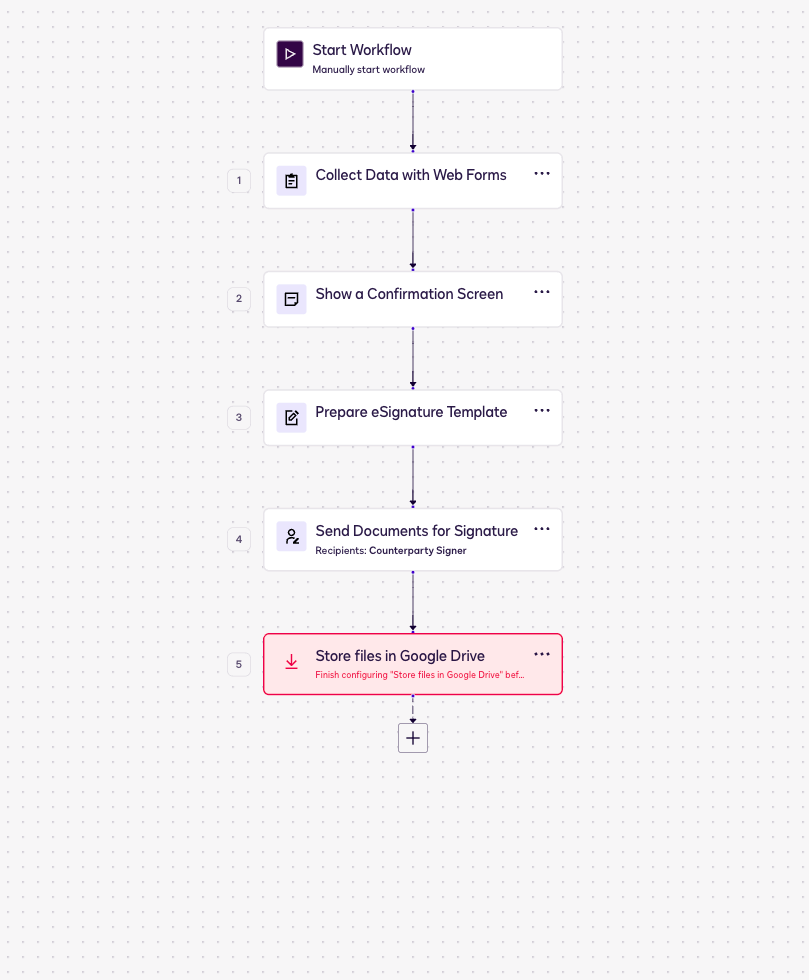
The backbone is Start Workflow (Manually start), then Collect Data with Web Forms, then Show a Confirmation Screen, then Prepare eSignature Template, then Send Documents for Signature. The “Manually start” trigger is what makes the workflow launchable by the connector through triggerWorkflow, and the Collect Data web-form fields become the inputs the agent fills.
7c. Clean up, and the approval gate
On the canvas, the wizard appended a Store files in Google Drive step, flagged red. Open its menu, then Delete, because it is a non-native app step.
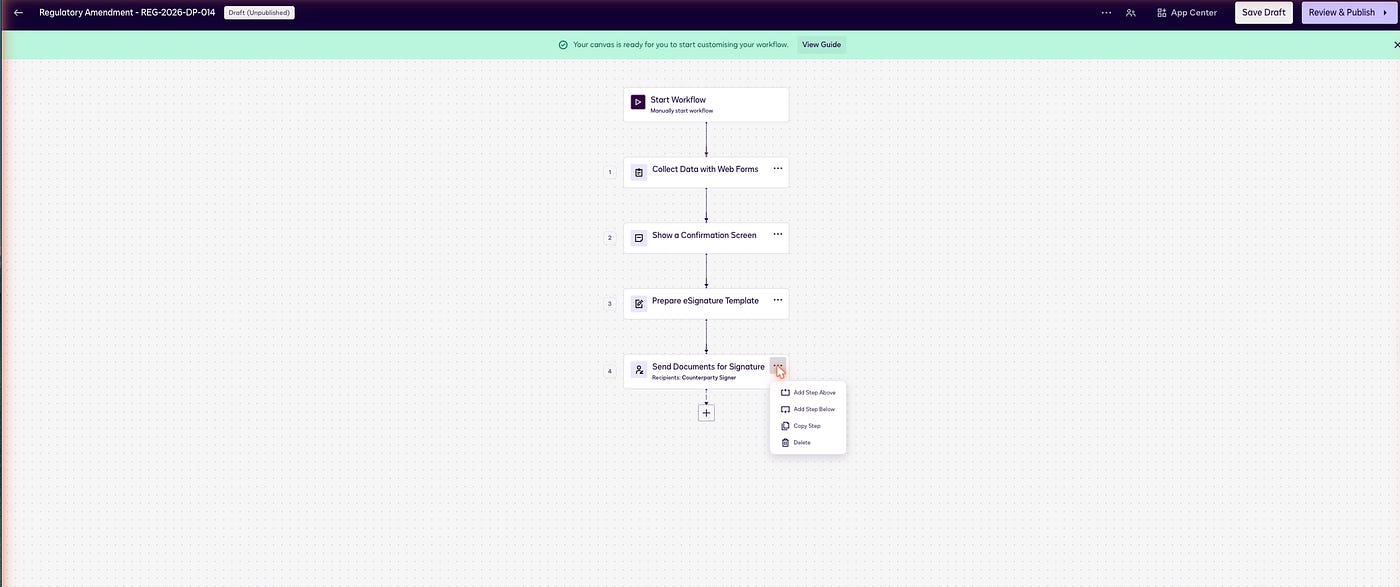
About approval: Workflow Builder has no standalone “approval” step. Native approval is modeled as an envelope recipient with a “Needs to Approve” action in the signing order. For this Cowork article, though, the human-approval checkpoint is Cowork pausing to ask you to confirm before it calls
triggerWorkflow, so the published workflow stays as the four native steps and the gate lives in Cowork.
7d. Publish
Click Review & Publish. The validator shows “This workflow is ready to publish.”
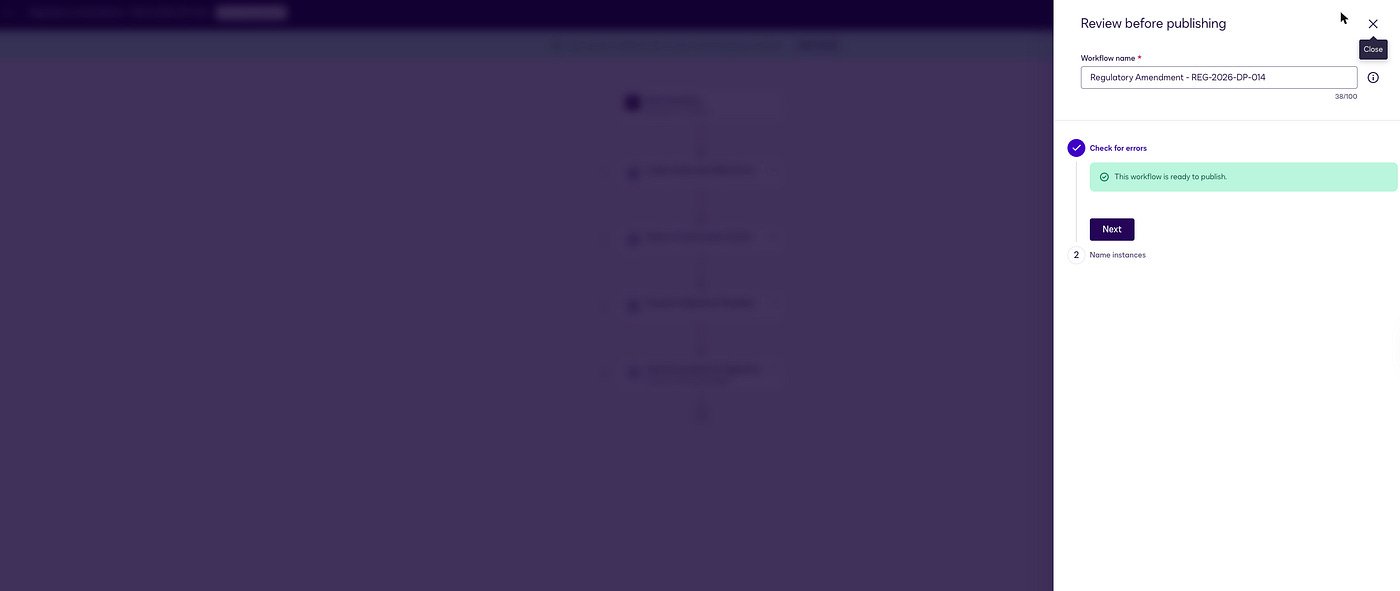
Next, then Name instances, then Done.
Publish, then Authorize application senders (a one-time OAuth consent so the workflow can send envelopes on your behalf), then Publish workflow. Publishing only activates the definition, it does not send anything.
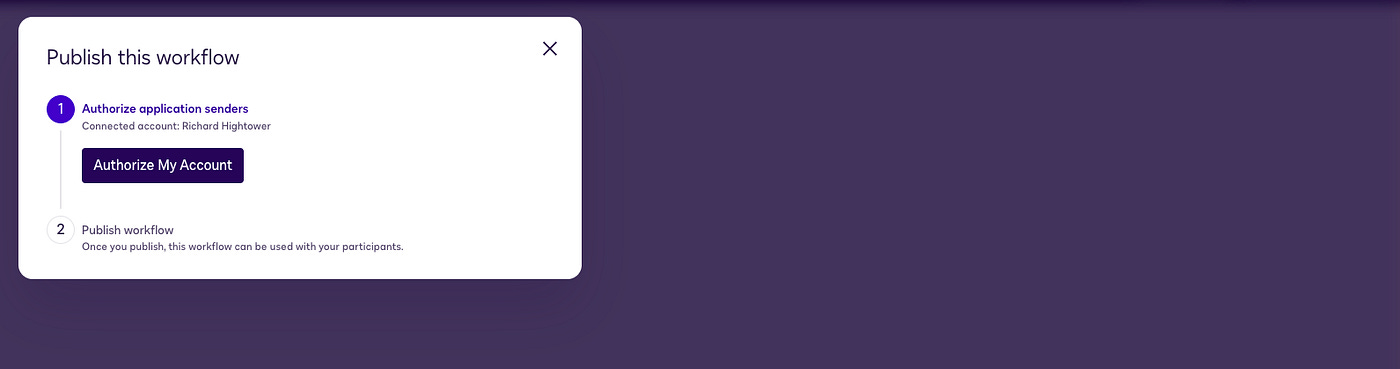
7e. Confirm via the connector
After publishing, the agent can see it. getWorkflowsList returns the workflow (status active), and getWorkflowTriggerRequirements reports the inputs the agent must supply, which come from the workflow’s start configuration. For this first published version the trigger schema is a single field, startDate, because the workflow starts manually and collects everything else from a human through the web form. Hold that detail. It is exactly what trips the agent in Step 8, and it is what we fix in Step 9.
Step 8: Run the loop in Cowork
This is the payoff. With the connector live, the agreements in Agreement Manager, and the workflow published, the entire agent runs conversationally in Cowork, no code.
Trigger event
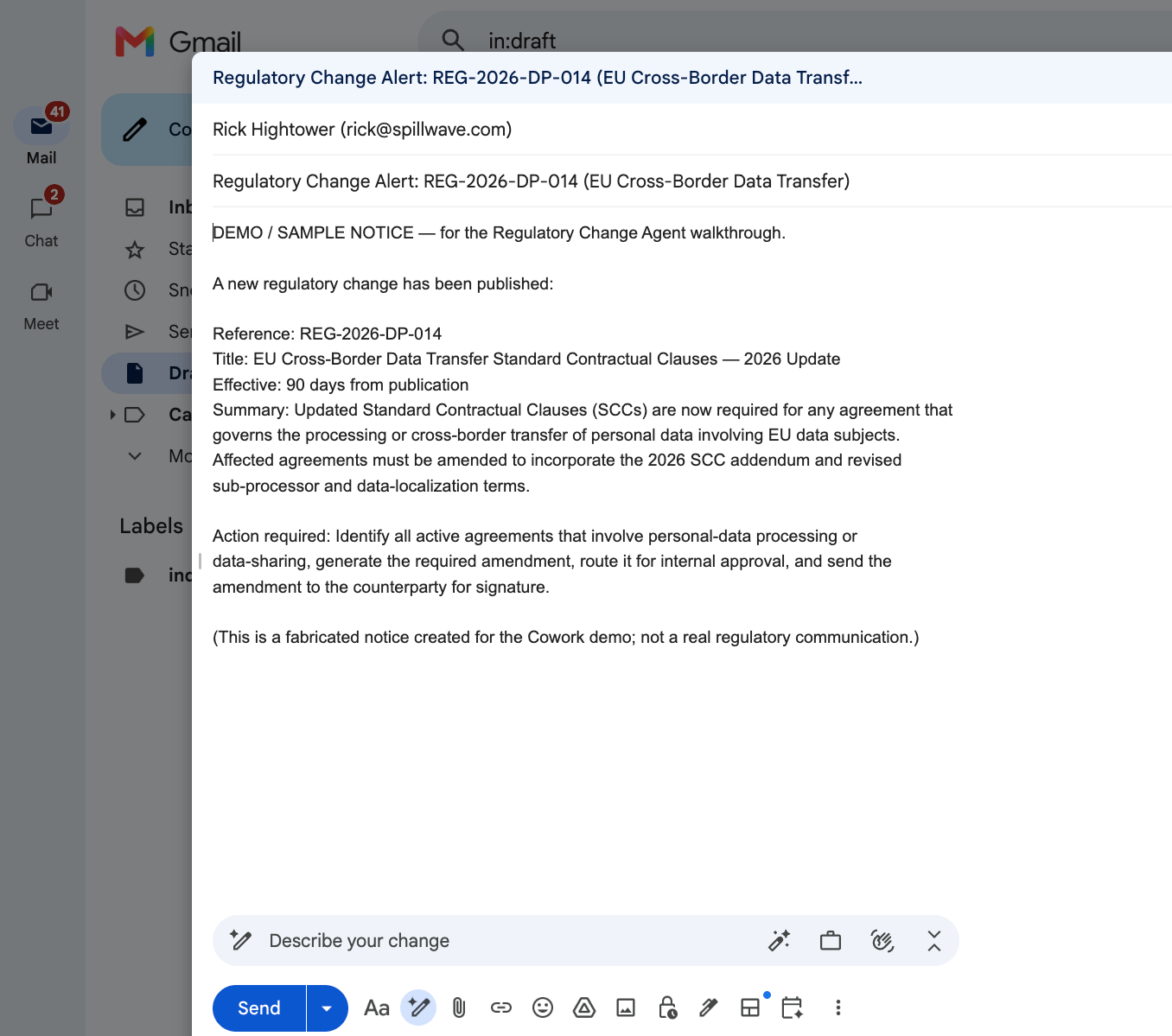
A regulatory change “arrives.” For the demo we dropped a notice into Gmail as a draft: “Regulatory Change Alert: REG-2026-DP-014 (EU Cross-Border Data Transfer).” It is a draft, not a sent email, just the prompt that kicks off the work.
1. Poll
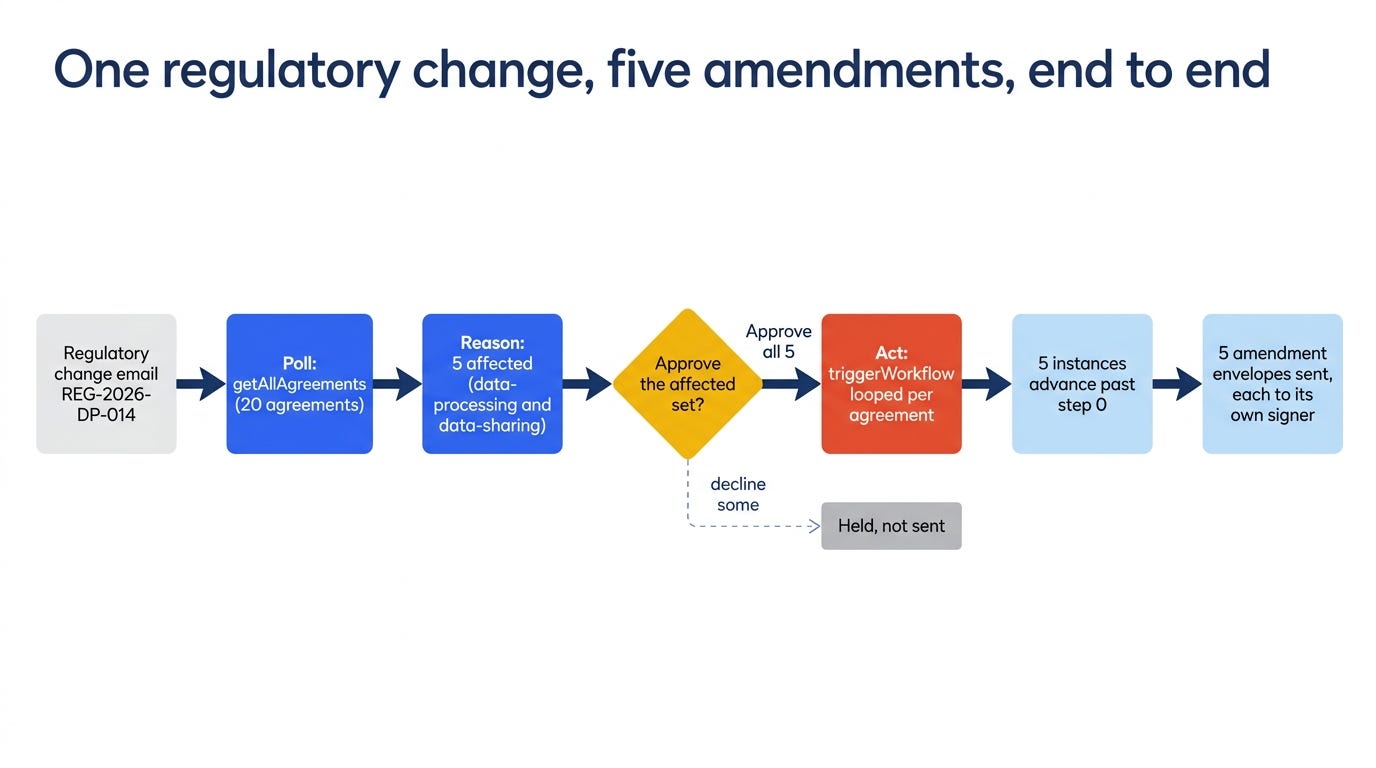
Claude calls the connector’s getAllAgreements for the account. It returns the full population, here 20 agreements, with AI-extracted key terms: title, parties (the buyer Northwind Logistics plus each counterparty), agreement type, and dates.
2. Reason
The 20 agreements span the three counterparty types this corpus models, vendor, commercial, and partner, and that matters: one regulatory change reaches across all three. Claude reads the extracted type and title of each agreement and decides which ones REG-2026-DP-014 (a personal-data and cross-border transfer rule) actually touches, which are the agreements that move personal data across the EU border, whoever the counterparty is.
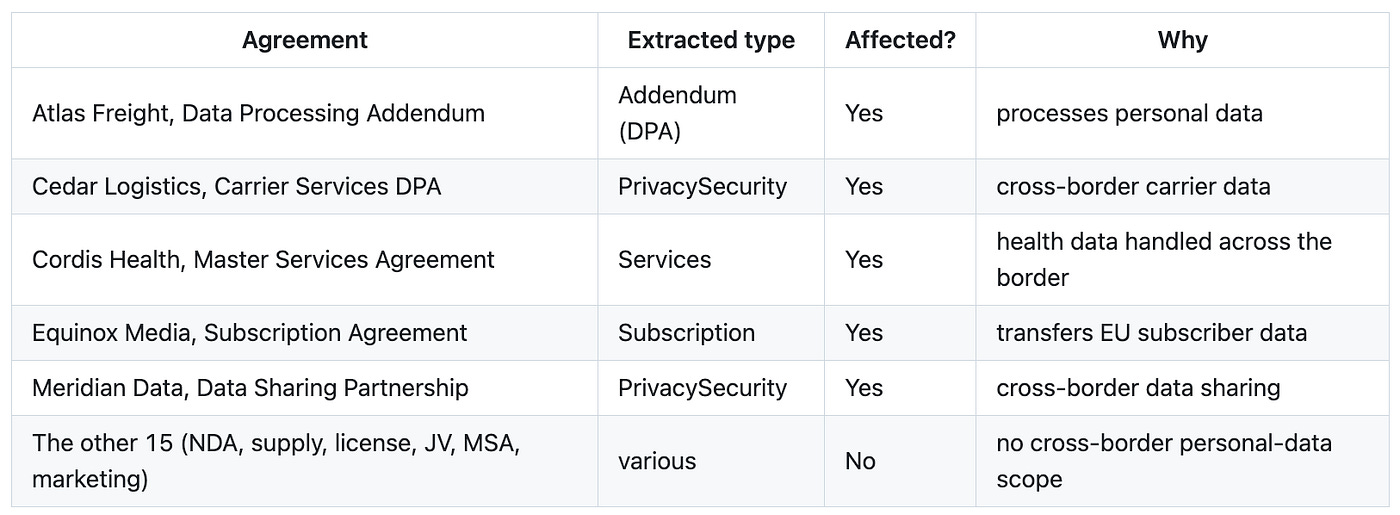
Result: 5 of 20 affected, crossing vendor, commercial, and partner counterparties in a single sweep. Before approving, the agent reads each affected agreement’s full record with getAgreementDetails to confirm its provisions. The reasoning uses only the read tools. It has no power to act.
One honest note on the corpus: an agreement being flagged “affected” is the agent’s judgment, and it is independent of which agreements ship a prebuilt amendment in the sample repo. The five flagged here are the set the run acts on end to end.
3. Approve, the human-in-the-loop gate
This is where Cowork itself is the checkpoint.
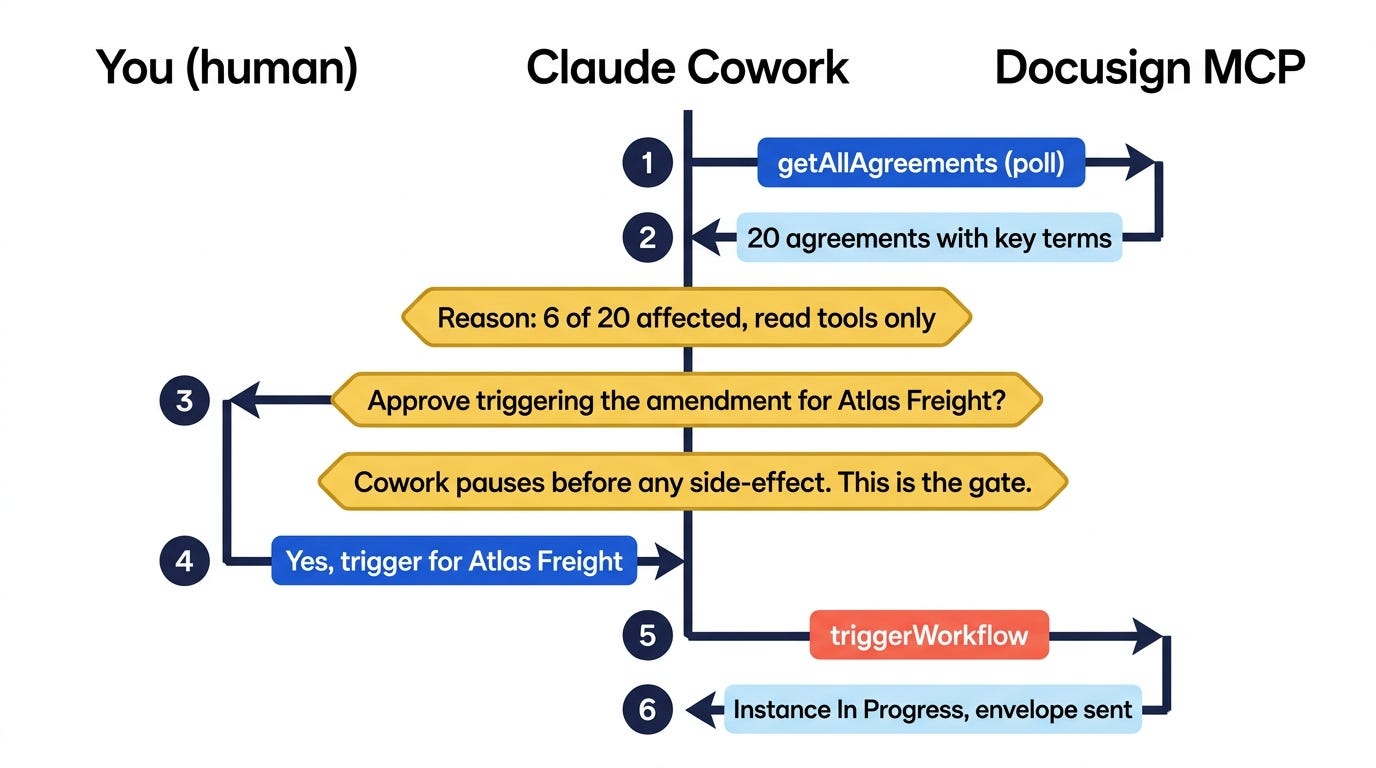
Before doing anything that changes state, Claude stops and asks the user to approve, in chat. In this run, Cowork presented an approval prompt covering the whole affected set, “5 agreements are affected by REG-2026-DP-014 (Atlas Freight, Cedar Logistics, Cordis Health, Equinox Media, Meridian Data). Approving sends a real Docusign envelope to each one’s signer,” with explicit options: approve all five, approve a subset, decline some, or hold. The default is to act on the entire affected set, not just the first one. The user selected “Approve all 5,” and that selection is the approval. Nothing was sent until that click.
This is the key difference from a coded Agent SDK version, where the same gate has to be enforced in code: the mutating MCP tools are left out of the allowed-tools list and denied unless a human approval exists. In Cowork, you get the gate for free, because the assistant pauses on side-effectful tools by design.
4. Act, and the first trigger stalls
Only after approval, Claude calls the mutating connector tool triggerWorkflow, passing the workflow ID, the trigger inputs, and an instance name. The response comes back clean: an instance ID, status In Progress. By every signal the agent can see, the act succeeded.
Then nothing arrives. No envelope in the inbox, no email to the signer. getWorkflowInstance shows the instance parked at step 0 and never advancing. The agent reported success, and yet the deliverable, the sent amendment, did not exist. This is the most dangerous kind of failure: a green checkmark over a no-op. Fixing it is Step 9, and it turns out to be the most instructive part of the whole build.
Step 9: Rebuild the workflow for an API start
The diagnosis
Opening the parked instance in Workflow Builder and the workflow’s Start configuration together told the whole story. The workflow’s start method was set to Manually in Docusign, and its first two steps were Collect Data with Web Forms and Show a Confirmation Screen. Those are interactive steps: they wait for a human to open a browser, fill a form, and click. The agent’s triggerWorkflow call did create an instance, but the instance immediately parked on the web form, waiting for a person who was never coming. The API call carried no way to skip the human steps, because the workflow was authored as a human-initiated flow. That is the root cause behind the green-checkmark stall: a manually-started, form-collecting workflow cannot be driven to completion by an API trigger.
The rebuild, step by step
The fix is to make the workflow genuinely API-first, and to feed the signer from trigger variables instead of a web form. Driving the Workflow Builder builder through Claude in Chrome, we:
Opened Start Workflow and changed the start method from “Manually in Docusign” to From an API call (“Starts after an API call happens, and data can be sent as payload”).
Added three trigger variables so the API call can carry the signer:
counterparty_name(Text),counterparty_email(Email), andagreement_id(Text). Set the starter to Automated process.Opened Send Documents for Signature and rebound the Counterparty Signer recipient: name to
counterparty_name, email tocounterparty_email, replacing the old web-form bindings.Deleted the two interactive steps. Switching to an API start makes Collect Data with Web Forms and Show a Confirmation Screen error (“You must add a Set Up Invite step”), because there is no human starter to fill them. They are exactly what stalled us, so they go.
The result is a clean, fully automatable flow: Start (From an API call), Prepare eSignature Template, Send Documents for Signature, Path End.
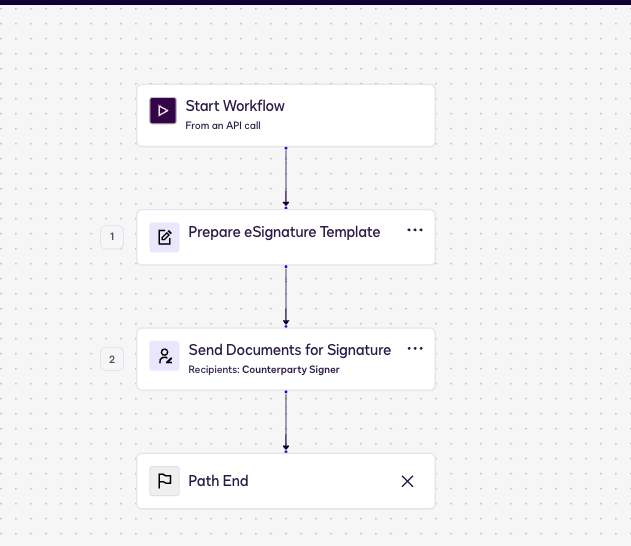
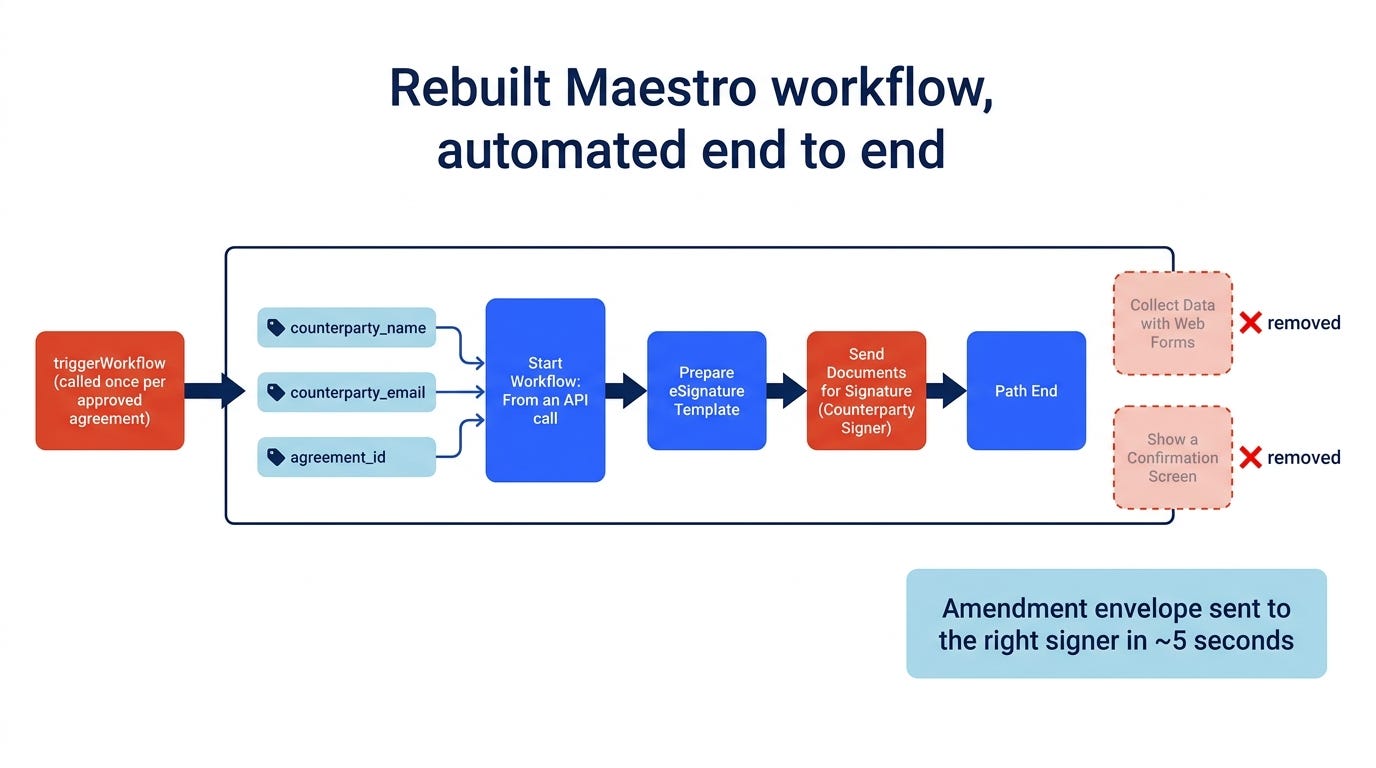
This rebuild is the one place the article asks you to author the workflow conversationally rather than click through a wizard, because the decisions matter. Two of them were real forks, and Cowork paused to ask:
How should I handle the two interactive steps (Web Form, Confirmation Screen) during the rebuild? The clean, reliable fix is to delete them: the agent path (API trigger, auto-send) is the goal, and keeping a manual fallback inside the same workflow means adding invite steps plus a branching rule that fights the automation. Decision: delete both.
Who drives the Workflow Builder builder edits, and when do we publish? Decision: the assistant drives the edits, and stops at a publish gate so a human confirms before the live workflow version is replaced.
That publish gate is the same human-in-the-loop principle as the trigger gate, applied to editing the workflow itself. Republishing replaces the live definition, so it waits for an explicit “Yes, publish now.”
Republish
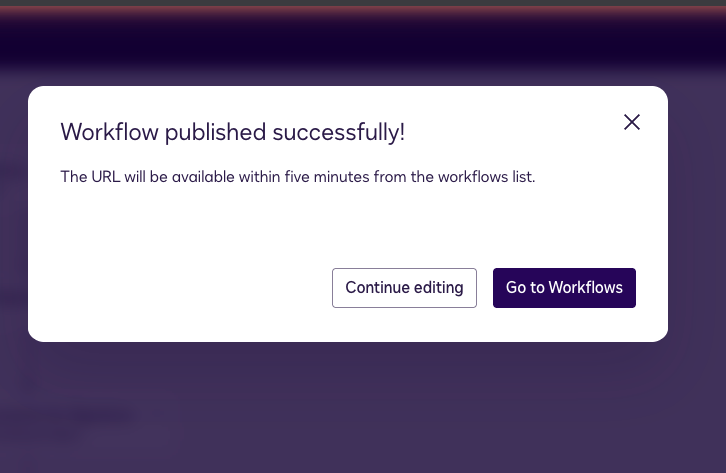
With the rebuild done and the validator showing “This workflow is ready to publish,” publishing produced version 2.0.0. Docusign notes the new trigger URL propagates within five minutes, though in our run the connector saw the new schema immediately: getWorkflowTriggerRequirements now reported counterparty_name, counterparty_email, and agreement_id alongside startDate.
The re-run: five amendments, end to end
We re-ran the loop. This time the act step did what its name promises. Claude looped triggerWorkflow once per approved agreement, passing that agreement’s counterparty_name, counterparty_email, and agreement_id, with Cowork confirming each mutating call. Each instance advanced past step 0, and within about five seconds of each trigger an envelope was sent.
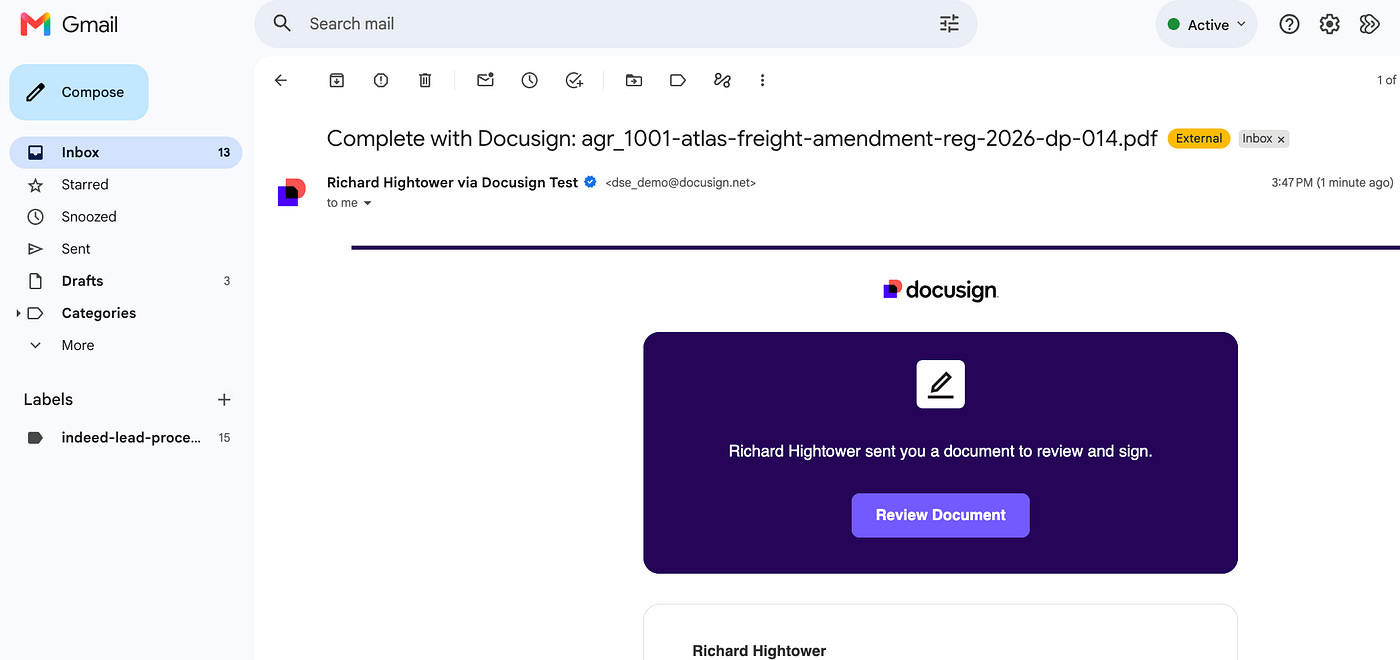
Five triggers, five instances, five amendment envelopes, each routed to its own counterparty signer (Atlas Freight, Cedar Logistics, Cordis Health, Equinox Media, Meridian Data). getWorkflowInstance confirmed each advanced, and getEnvelopes confirmed each send. One regulatory change had become five approved, sent amendments, with a human approving the set and nothing else touched.
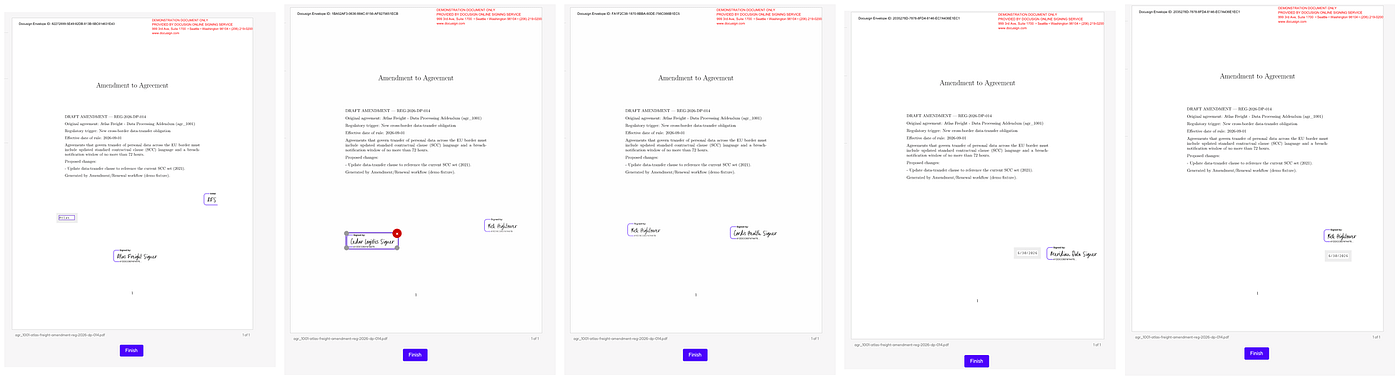
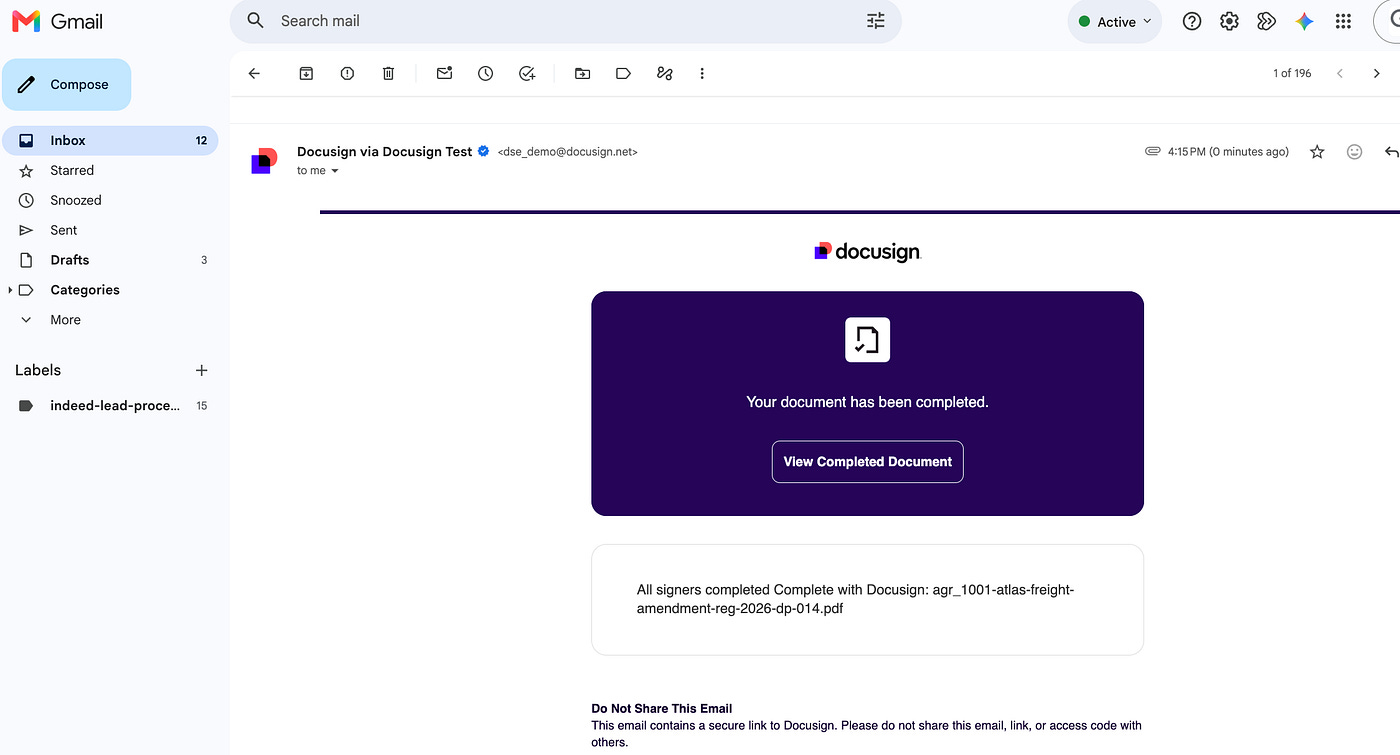
Following one envelope all the way through, the signer opens the Docusign email, signs, and Docusign emails back that the document is complete.
The tools used in the loop, in order: getUserInfo for context, getAllAgreements to poll, then reasoning with no tools, then human approval in Cowork, then getWorkflowTriggerRequirements to learn the inputs, then triggerWorkflow looped per approved agreement to act, then getWorkflowInstance and getEnvelopes to verify. Read tools run freely. The two mutating tools only fire after the user approves.
Honest caveat, and an enhancement
The rebuilt workflow (v2.0.0) now routes each envelope to the right signer, because the trigger carries counterparty_name, counterparty_email, and agreement_id. One limitation remains, and it is visible in the montage above: every envelope carries the same amendment document, the Atlas Freight template, because the workflow’s “Prepare eSignature Template” step uses a single fixed template regardless of agreement_id. The recipient routing is agreement-specific; the document is not yet. To make the document itself per-agreement, give the workflow a template or document source keyed on agreement_id. It is not required to demonstrate the loop, but it is the natural next refinement.
Callout: the real MCP tool envelope
Everything above runs inside a small, fixed set of tools. Three read tools run freely. Two mutating tools are gated behind human approval.
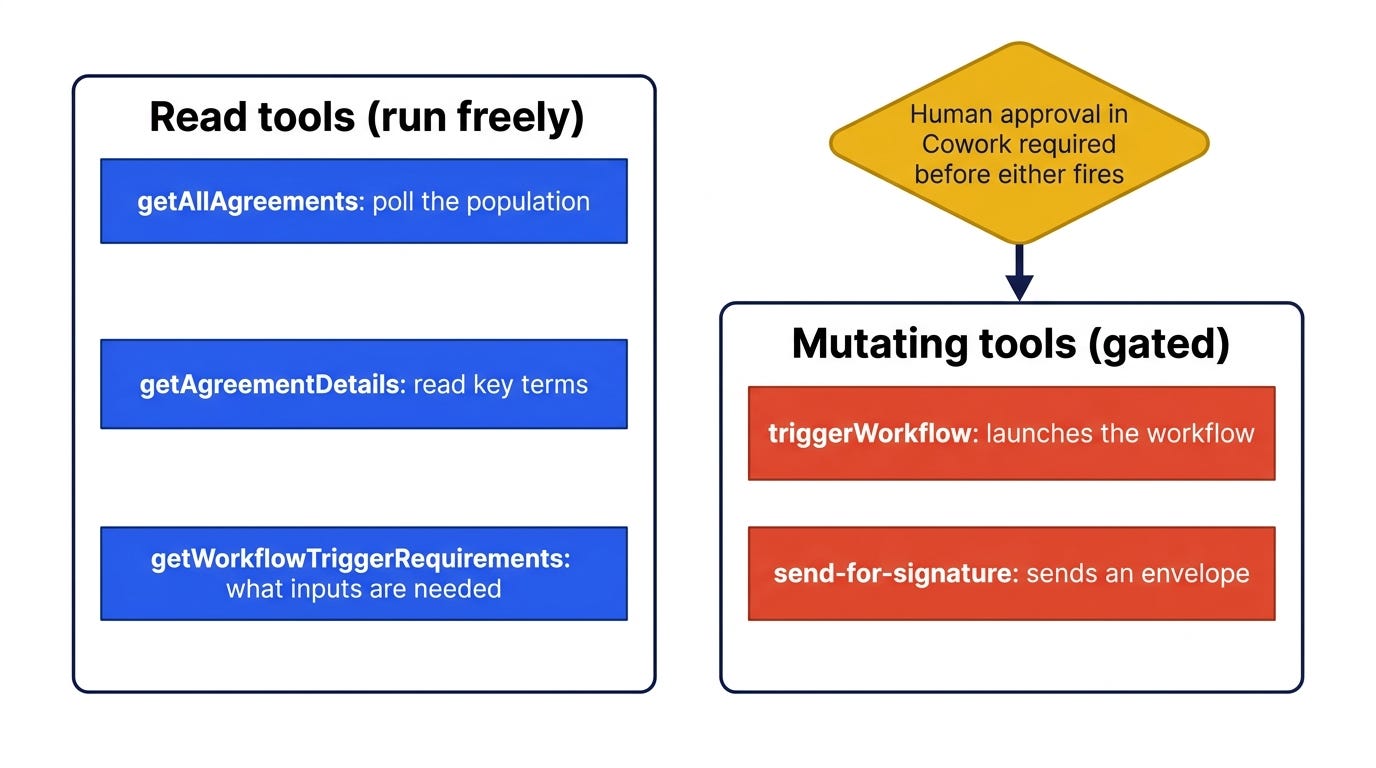
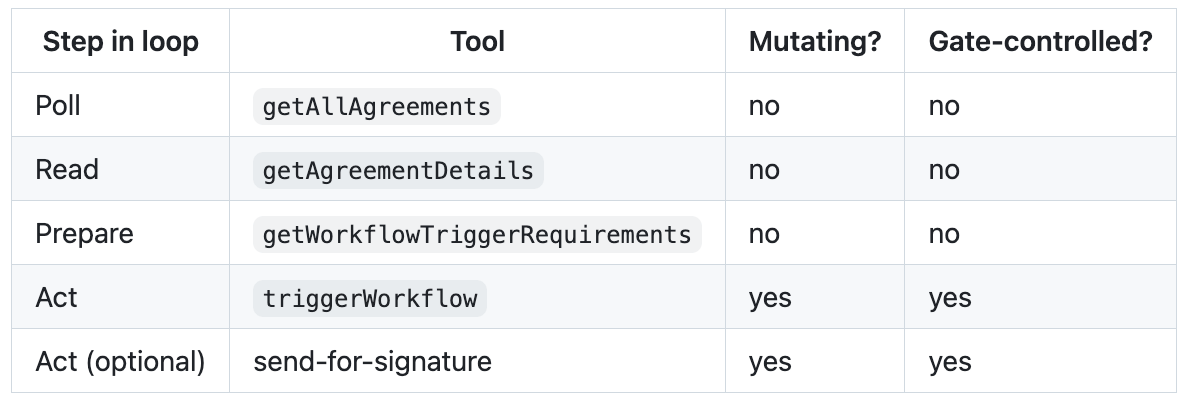
That separation is the safety story in one table. The agent can look at everything and change nothing without a person in the loop.
Troubleshooting, the wrong turns collected
Demo password rejected by the connector. The built-in tile uses production,
account.docusign.com, and a demo account does not exist there. Use a custom connector with the demo URL, whose sign-in isaccount-d.docusign.com.“Connection issue, could not connect to the server.” This is the unauthenticated pre-check. The MCP server stays quiet until you authenticate. Click Connect anyway.
“Automatic client registration is not supported.” The demo server has no dynamic client registration. Create an Integration Key and put its Client ID and Secret in the connector’s Advanced settings.
Looking for Integration Keys under Extension Apps. Wrong area. Keys live under Apps and Keys, and the page even links you there.
Apps and Keys renders a blank page. The admin is a single-page app that sometimes fails to paint. A hard refresh (Cmd+Shift+R) usually fixes it. If not, try the direct URL or an incognito window, or wait a few minutes for a brand-new account to finish provisioning.
OAuth round-trip fails after entering the key. Almost always a redirect-URI mismatch. Both the claude.ai and claude.com callbacks must be registered exactly.
Cannot find Agreement Manager, no “Agreement Manager” menu item. It is under Agreements, then Completed, not a standalone link.
/navigatorredirects to eSignature.getAllAgreementsreturns 0 after connecting. Expected on a new tenant. Upload documents into Agreement Manager first, because the API only reads what is there.No MCP tool to import agreements. Correct, ingestion is UI-only. In the developer environment, eSignature envelopes are not auto-ingested into Agreement Manager, so upload the documents.
Appendix: about the sample corpus
The 20 agreements are a synthetic, reproducible corpus generated from a manifest by a small script that renders each entry as both .docx and .pdf, plus amendment documents. They model a fictional buyer, Northwind Logistics, and 20 counterparties across mixed agreement types. Several are “affected” by the regulatory change REG-2026-DP-014 and ship with prebuilt amendments. Because they are generated, they carry no confidential data, which is what lets us publish screenshots of them.
If you upload in batches and poll immediately, you will notice the first few agreements show full AI-extracted key terms while the rest briefly show type: "Other" with empty provisions. That is not a difference in the documents, it is Docusign’s AI extraction latency. Agreement Manager enriches uploads in the background over a few minutes, and re-polling shows the later uploads converge to the same rich extraction.
From one run to a repeatable demo: skills and permissions
The most useful thing we built in Cowork was not any single tool call. It was the realization that once the loop worked once, we could ask Cowork to save it, and it would write the skill for us.
We did not hand-author these skills. We ran the loop conversationally, watched it work, and then said, in plain language, “save what we just did as a skill so we can run it again.” We described what we wanted, the steps, the order, and above all the safety rules (read freely, stop and ask before acting), and Cowork wrote the SKILL.md. When a step was wrong, we told it what to change and it rewrote the file. A Cowork skill is just a markdown file with a short frontmatter description that tells Cowork when to use it.
We ended up with two Cowork skills: regulatory-sweep, the loop itself, and demo-reset, which makes the whole thing repeatable.
regulatory-sweep is the loop itself: poll, reason, approve, act. The frontmatter is what makes it discoverable and safe to invoke. The description is written in the third person and packed with the phrases a user might actually say, so Cowork knows when to reach for it, and argument-hint advertises the one input it takes:
---
name: regulatory-sweep
description: Runs a regulatory-change sweep over Docusign agreements in Claude
  Cowork. Polls the agreement population through the Docusign connector, reasons
  about which agreements a regulatory change affects, pauses for the user to
  approve, then triggers the preconfigured amendment workflow only for approved
  agreements. Use when asked to “run a regulatory sweep”, “find agreements
  affected by a regulation”, “which contracts does this rule touch”, “amend the
  affected agreements”, “act on the affected agreements”, or when a new
  regulation or policy change arrives and the affected agreements must be found
  and acted on in Cowork.
argument-hint: “[regulatory change: a pasted notice, a Gmail draft, or a change id]”
metadata:
  version: 1.1.0
---
# Regulatory Sweep (Cowork, no code)

## Inputs
- `$ARGUMENTS` = the regulatory change: a pasted notice, a Gmail draft, or a short description.  ①

## Steps
1. Confirm the connection and population (getUserInfo, getAllAgreements).
2. Poll the population; read affected agreements with getAgreementDetails.
3. Reason (read-only): which agreements the change touches, with a rationale.  ②
4. Approve (the gate): stop and ask the user before any mutating call.         ③
5. Act (only after approval): loop triggerWorkflow over every approved agreement, passing counterparty_name, counterparty_email, and agreement_id.  ④
6. Report what was triggered, held, or declined.
① The skill takes one input, the regulatory change itself, declared with argument-hint and read from $ARGUMENTS, however you provide it (a pasted notice, a Gmail draft, or a one-line description); it extracts the reference id, summary, jurisdiction, effective date, and affected agreement types, then confirms the tenant with getUserInfo and getAllAgreements. ② The reasoner uses read tools only, so it can sort the whole population while having no power to act. ③ This is the line that makes it safe: the skill stops and waits for a human, so nothing mutating runs ahead of approval, and the default is to act on the whole affected set, not just one agreement. ④ Only approved agreements reach triggerWorkflow, and the act step loops over every one of them, passing that agreement’s counterparty_name, counterparty_email, and agreement_id so each envelope is routed to the right signer, with Cowork still confirming each mutating call as it fires.
demo-reset makes the whole thing repeatable. It clears the state a prior run left behind, regenerates the synthetic corpus, and re-uploads it into Agreement Manager through the browser, because there is no MCP tool to upload into Agreement Manager.
---
name: demo-reset
description: Resets the regulatory-change demo so it can be run again in Claude
  Cowork. Optionally clears prior run state (cancels leftover Docusign workflow
  instances and voids their envelopes), regenerates or reuses the synthetic
  agreement corpus, then re-uploads the documents into Docusign Agreement Manager
  through the Agreement Manager web UI using Claude in Chrome, screenshotting every
  step, and verifies ingestion through the Docusign connector. Use when asked
  to “reset the demo”, “clean up prior runs”, “regen the docs”, “re-upload the
  corpus”, “reload the agreements”, or “run the demo again”.
argument-hint: “[optional: ‘clean’ to also clear prior run state before reloading]”
metadata:
  version: 1.2.0
---
# Demo Reset
## Part 0 - Clear prior run state (optional, confirm-gated)                     ①
## Part 1 - Regenerate or confirm the corpus (deterministic, no side effects)   ②
## Part 2 - Re-upload to Agreement Manager (driven by Claude in Chrome)                 ③
## Part 3 - Verify ingestion through the connector (getAllAgreements)           ④
① Clearing prior run state is irreversible, so it is read-only first and confirm-gated: the skill lists the leftover instances and envelopes and shows them to you before it cancels or voids anything. ② The generator is skip-if-exists and deterministic, so on an existing checkout it is a no-op and you usually just confirm the 20 PDFs are present. ③ Upload is the browser’s job because Agreement Manager has no ingestion API, so the skill drives the page’s hidden file input rather than the native file picker, which Claude cannot see. ④ Verification reads the population back through the connector to prove the upload landed.
We did not get this right on the first run, and that is the useful part. Running demo-reset end to end against the live tenant surfaced five specific things, and we fed each one back so Cowork could fold it into the skill (every correction is tagged [verified] in the file).
① Cowork screenshots are inline only. save_to_disk is a no-op in Cowork, so the inline images are the audit trail, not saved files. ② An authenticated connector does not mean a signed-in browser. The two are separate, so if the browser shows the Docusign login page the skill stops and hands off to the user, and never types a password. ③ getAllAgreements paginates. totalCount is the page count, not the grand total, and the response carries hasMore and a ctoken, so the skill confirms the population grew (or spots the duplicate file_name) rather than expecting a magic number like 40. ④ A cancelled instance stays in the list as Canceled history, so a clean tenant means nothing is In Progress, not that the list is empty. ⑤ The connected folder is write-protected. Cowork blocks overwriting or deleting files in a connected folder until you grant allow_cowork_file_delete, so a genuine re-render needs that permission first; otherwise the skip-if-exists generator simply no-ops.
That is the authoring loop in one paragraph: prompt for what you want, run it, correct what reality shows you, and let the assistant rewrite the skill. Each run leaves the skill a little more trustworthy.
The permissions file, and why it is the gate
The first time Cowork calls a connector tool, it asks whether to allow it. You can choose “Always allow” or “Ask every time,” and that choice persists. We made that choice deliberately, and it is the whole safety model in one decision: set the read tools to “Always allow” so the sweep runs without friction, and leave the mutating tools on “Ask every time” so Cowork pauses for you before anything changes state. That pause is the human-in-the-loop gate. It is not a feature we coded, it is a permission we chose not to grant.
Running the full reset taught us that this policy spans more than the Docusign connector. The browser upload pulled Claude in Chrome into the picture, and the corpus folder has its own write protection. We wrote the whole policy down so the demo is reproducible (cowork/permissions.json). The circled callouts are annotations, not part of the file:
{
  “docusignConnector”: {
    “alwaysAllow”: [                                                   ①
      “getUserInfo”, “getAllAgreements”, “getAgreementDetails”,
      “getWorkflowsList”, “getWorkflowTriggerRequirements”,
      “getWorkflowInstancesList”, “getWorkflowInstance”,
      “getEnvelopes”, “getEnvelope”
    ],
    “askEveryTime”: [                                                  ②
      “triggerWorkflow”, “sendForSignature”,
      “cancelWorkflowInstance”, “updateEnvelope”
    ]
  },
  “claudeInChrome”: {
    “alwaysAllow”: [”navigate”, “find”, “read_page”, “take_screenshot”],   ③
    “askEveryTime”: [”file_upload”]
  },
  “coworkFolderAccess”: {                                              ④
    “writeProtectedByDefault”: true,
    “grantOnDemand”: “allow_cowork_file_delete”
  }
}
① The nine Docusign read tools run freely, so polling, reasoning, and listing never interrupt you. ② The four Docusign tools that change tenant state stop for your confirmation. ③ Claude in Chrome may navigate, read the page, and screenshot freely, but file_upload, the one browser action that actually populates the tenant, is left on Ask every time, so the Agreement Manager upload is gated like any other side-effect. ④ The connected corpus folder is write-protected, and allow_cowork_file_delete is granted only when you genuinely need to re-render, so a stray command cannot delete your files. The gate is everything left on Ask, across both surfaces.
This matters because it is defense in depth. The skill asks for approval in its own steps, and the permission policy enforces it underneath: even if the assistant tried to act early, an unapproved mutating tool would still stop and ask you. Read freely, change nothing without a human.
Reproduce it yourself
Everything in this article is no-code, but you still need the sample agreements to upload. The companion repository, RichardHightower/regulatory-change-agent, contains the reproducible corpus and the regulatory-change input:
data/sample-agreements/documents/: the 20 agreements as both .docx and .pdf, plus the amendment documents. These are what you upload into Agreement Manager in Step 6.data/sample-agreements/agreements_manifest.json: the manifest that defines the buyer, the 20 counterparties, the agreement types, and which agreements are “affected.”scripts/generate_corpus.py: regenerates the whole corpus from the manifest, so you can change the mix and reproduce your own.data/eu-data-transfer.json: the REG-2026-DP-014 regulatory change used as the trigger.cowork/skills/regulatory-sweep/SKILL.mdandcowork/skills/demo-reset/SKILL.md: the two Cowork skills above, ready to load into your own Cowork environment.cowork/permissions.json: the written record of the connector permission policy (read tools always allow, mutating tools always ask).
To reproduce the run: create a free Docusign developer account, create an Integration Key and a custom connector as in Steps 1 through 5, upload the corpus PDFs into Agreement Manager (Step 6), build the Amendment workflow (Step 7), drive the loop in Cowork (Step 8), and if your first workflow stalls on a human web form, rebuild it for an API start (Step 9). Build it with an API-call start and the three trigger variables from the outset and you can skip straight to the working run. Bring your own preconfigured workflow if you prefer; the agent only triggers it, it does not build one at runtime.
From memo to action
Bob’s old Tuesday ended with a spreadsheet he did not trust and a memo with a number he was seventy percent sure of. Bob’s Tuesday with the agent ends differently. He is still the one working: he still frames the regulatory question, still reads what came back, and still approves every amendment before it goes anywhere. What changed is everything around those decisions. The agent polled the real population, reasoned over AI-extracted key terms to find the agreements a single regulatory change touches, paused for Bob to approve, and only then triggered the amendment, all on Docusign’s own rails. The agent did not replace Bob’s judgment. It removed the eight hours of skimming that stood between him and the moment his judgment was actually needed.
The bigger pattern is grounded research, then action, on the platform’s own tools, behind a human gate. The memo is no longer the deliverable. The triggered, approved action is.
If you are a paid subscriber, thank you. Your support makes this work possible.
If you are a free subscriber and find these articles useful, please consider upgrading. A paid subscription is $80 per year or $8 per month.
Free subscribers typically receive access to the full versions of paid articles after one to two months.
About the Author — Claude Certified Architect
Rick Hightower is a former Senior Distinguished Engineer at a Fortune 100 company, focusing on delivering ML / AI insights to front-line applications, and a practitioner building multi-agent production systems. Follow him on SubStack and Medium for more hands-on agent engineering content. You can also book him to speak and train your team: Check out Rick Hightower’s SpeakerHub.

Rick Hightower helps companies become AI-first through practical mentoring, executive and team training, and custom AI solution development. He is a former Senior Distinguished Engineer at a Fortune 100 company, where he focused on bringing ML and AI insights into real front-line business applications.
Subscribe to Rick’s newsletter to see videos and guides.
Rick is a Claude Certified Architect, AI systems practitioner, and builder of production multi-agent systems. He is currently working on authoring a book on Harness Engineering with Manning Publishing. He created Skilz, a universal agent skill installer supporting 30+ coding agents, including Claude Code, Gemini, Copilot, and Cursor, and co-founded one of the largest agentic skill marketplaces.
Today, Rick and the Spillwave team work with leaders and teams who want to move beyond AI experiments and build real AI capability inside their companies. He helps organizations adopt AI safely, train their people, redesign workflows, and build practical AI systems that create measurable business value.
Ready to make your company AI-first? Connect with Rick on LinkedIn, Substack, or Medium, book him to speak or train your team, or visit Spillwave to explore mentoring, training, and custom AI solutions for your organization.
This post is sponsored content produced in partnership with DocuSign.